40 Etereweb setup
EtereWeb Setup
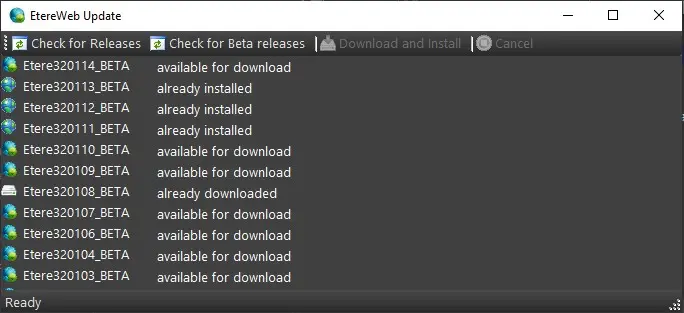
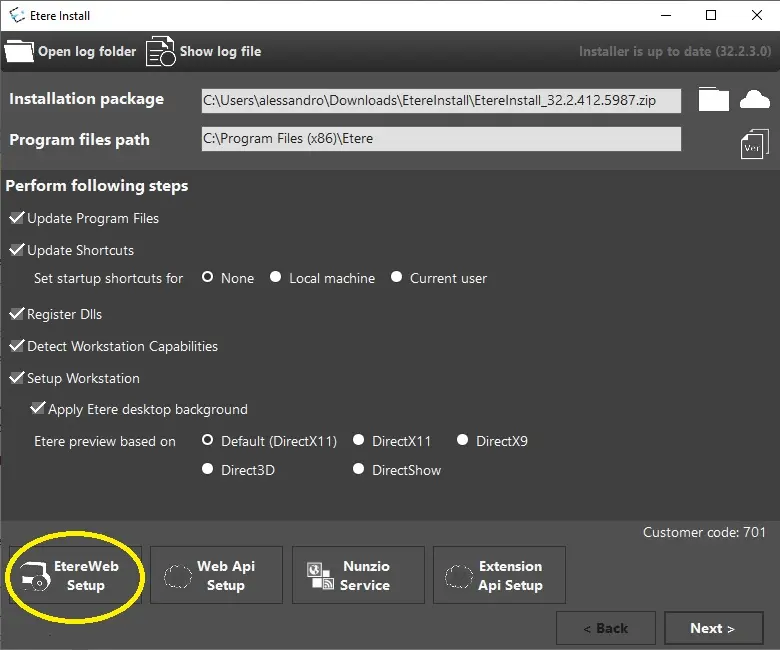
1. The installation of EtereWeb Application (EtereWeb Setup) is embedded into Etere Update main menu as shown below. It runs outside Etere environment, require only lib_utils component and optionally wsetup.ini for Data Connection properties default.
NB: If both “EtereWeb Setup” and “Web API Setup” used port 80 (default port) for communication with SQL Server, both set up cannot be run concurrently, else, one of the setup would failed.
NB: Prior to EtereWeb setup, Etere application modules must be installed and configured in workstation and the database must be connected.
installation_etereweb_setup
2. Launch Etere Installer, click on the button shown above
Before you begin, Etereweb Installer
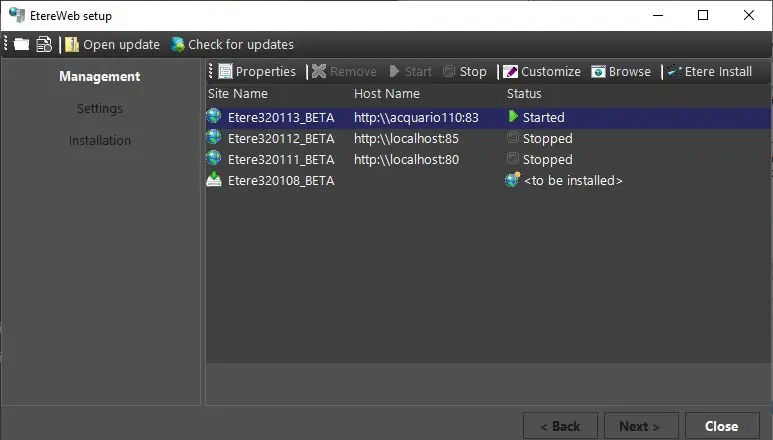
with the label <to be installed>.
setup_management
By simply clicking on the “Check for updates” button, it’s possible to see all the latest Etereweb releases and check if they have been already installed, already downloaded or if they are available to be downloaded.
Selecting a version available for download, would enable the button Download and install, which will create
a folder named "EtereInstall" (if not already present) in the local user’s downloads folder, where the selected
Etereweb package will be saved.
Once the download is done, the installation process will start, as described at point n.3 in this page.
NB: The released version are present in 2 listing, 1 for official release and 1 for customer-specific release. Both releases are stored in the same directory as Etere Windows applications releases.
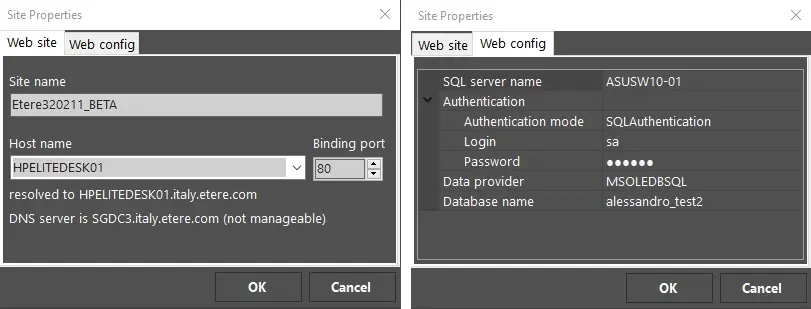
Web site name: It display the name of the network site where the EtereWeb Setup application is available. EtereWeb Setup is capable of managing the DNS, where it retrieve the IP address (the host name is not necessarily needed) to fulfill the settings. DNS Server can be another machine in the network, user must be granted with specific Windows permission in order to manage DNS.
Inherit binding from: This setting enable you to inherit impersonation, hostname and binding port from the last installed site to the new site.
The settings in the Data Connection section are auto-retrieved by the Etere application.
Moreover, the data provider would be aligned to the same network provider name (e.g. MSOLEDBSQL) configured in Etere desktop applications.
The SQL Database and SQL server names are automatically retrieved from the System section in configuration settings.
Authentication Mode: Not manageable, only SQL Authentication is allowed.
Enter the user name and password of an SQL account with high privileges (e.g.: sa) in the Authentication section.
- Run: indicate if the installation step has been performed or yet to be perform.
- Step: List the various steps to be performed in sequence by the installation program (see detailed information below).
- State: You can click on the status under the "State" column to view the step's details.
The steps performed in this installation phase are:
• Check Prerequisites
The required software must be installed:
-Microsoft .Net Framework 4.6 or later
-IIS 7.0 or later
-ASP .Net 4.5
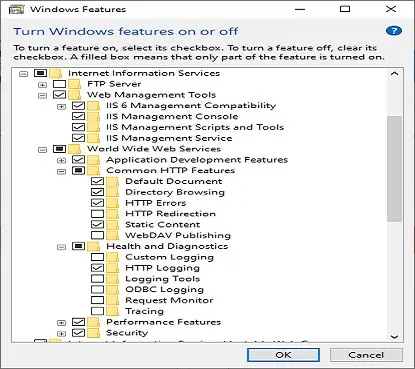
-IIS Windows Features listed below must be enabled:
Windows_Features
Note: you can bypass the prerequisite checks by setting the following registry key: HKEY_LOCAL_MACHINE\SOFTWARE\ETERE\Installer\ETEREWEB\CheckPrerequisites.Skip = 1.
- Creates physical path directory
- Creates application pools
- Creates a new site in IIS pointing to the physical path created and creates the virtual directories according to the media folders available in Etere.
Note: You can overwrite website and physical path by setting the following registry key if they exist: HKEY_LOCAL_MACHINE\SOFTWARE\ETERE\Installer\ETEREWEB\AddWebSite.SiteExistsUpdate
= 1.
Extracts files from the installation package to physical path on web site.
Note: Set the following registry key to extract more detail log while extracting files.
HKEY_LOCAL_MACHINE\SOFTWARE\ETERE\Installer\ETEREWEB\ExtractFiles.LogDeep = 1.
• Streaming Server Setup
Using this function, user can setup the EtereWeb Player Streaming Service (EtereWPlayer) if it is already installed in the same server. To install the Streaming Server, select the related feature in Etere Desktop installation process.
If Etereweb installation is launched and the Streaming server is not installed, Etereweb installer will skip this step.
• Database Setup
Updates specific EtereWeb stored procedures and functions in the database.
Database Setup requires Full-text catalog to be in place. If the catalog does not exist, you can perform System Maintenance task Full-text Search to create the catalog.
HKEY_LOCAL_MACHINE\SOFTWARE\ETERE\Installer\ETEREWEB\DatabaseSetup.LogDeep = 1.
• Web Site Setup
This process updates the web.config file in physical path setting database connection strings.
• Finalization
In the event when the installation could not be proceed further, this process automatically rollbacks the site and directories to the previous state.
HKEY_LOCAL_MACHINE\SOFTWARE\[Wow6432Node]\ETERE\Installer\ETEREWEB\ FinalizeInstallation.NoRollback = 1.
6. Upon installation, select one of the option available from the installation menu:
Back to Management: Select this option to return to EtereWeb Setup Management menu, where you can configuration the skin immediately, or check for new updates with closing the EtereWeb Setup wizard.
EtereWeb Management
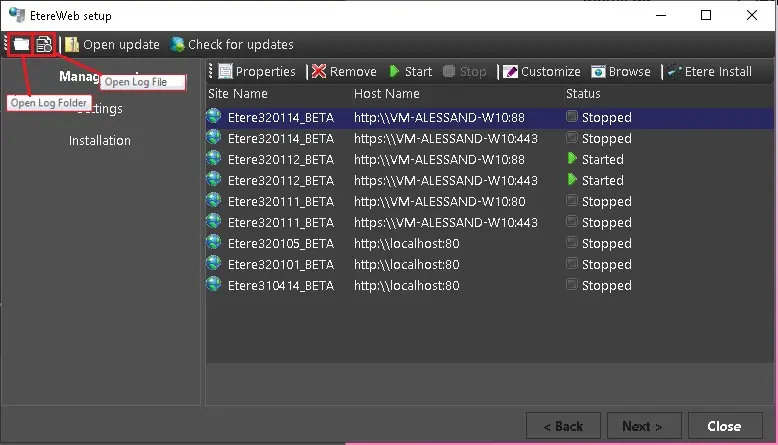
In the “Management” tab, all the various versions of EtereWeb installer are displayed under respective network sites. The toolbar in the "Management" tab allows user to manage the EtereWeb applications.
Web config tab - displays the
Delete - Using the delete function, user can remove the selected web site, delete its application pool and physical directory from the Management panel, if it is not used by other sites.
Before execute this function, the web site must be stopped.
Start / Stop - These functions allows user to stop or start the web site.
NB: If error message “The object identifier does not represent a valid object” popup when attempt to amend the Stop/Start status, it indicates that the default web site does not have HTTP binding.
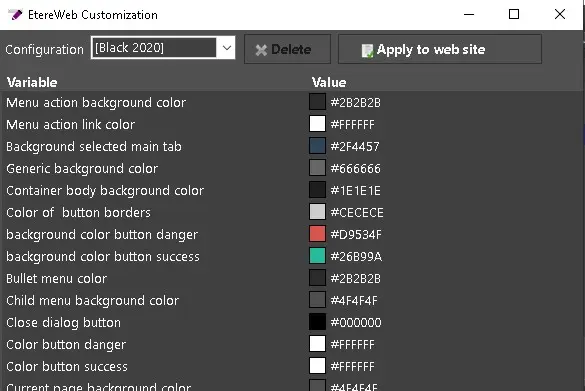
Customize - This feature opens the dialogue box to allow customizing the web site appearance. Changes allowed for customization includes the general aspects of the web appearance.
• Delete: delete the selected changes
• Apply to web site:
✓It apply the selected configuration to web site if no changes has been made.
✓If changes made to selected configuration, it saved the changes to database and apply the new configuration to web site.
• Save As: save the amended template with a different name
Browse - This feature open the web site with the default browser, using its host name or local host name.
EtereWeb Setup Log
During the EtereWeb Setup, the log containing the detail information of the setup process is saved into the local PC in C:\Users\user_name\AppData\Local\Etere\Log folder. The log file name is Etere.Web.Installer*.log.
Use the toolbar icons <Open Log File> or <Open Log Folder> in the EtereWeb Setup menu to locate and view the log file.