147.1.4 How to connect to RAI ICT (English version)
How to connect to RAI ICT
Intro:
Here a step-by-step procedure to access your bridge VM
General notes regarding the access to RAI ict system:
1) mistaking the password 3 times in a row will lock you out from the system for some time (don’t know actually how much time but roughly 30 minutes), if after the lock out time you keep mistaking the password your account could be completely disabled and it requires customer support to re-enable your account.
2) each token generated by VASCO is ONE TIME USE ONLY, so when one is used you have to wait and generate a new one
The 2 following methods are alternative to each other; you can choose whichever you like the most
A1) Access to the Digital Workspace portal Method 1
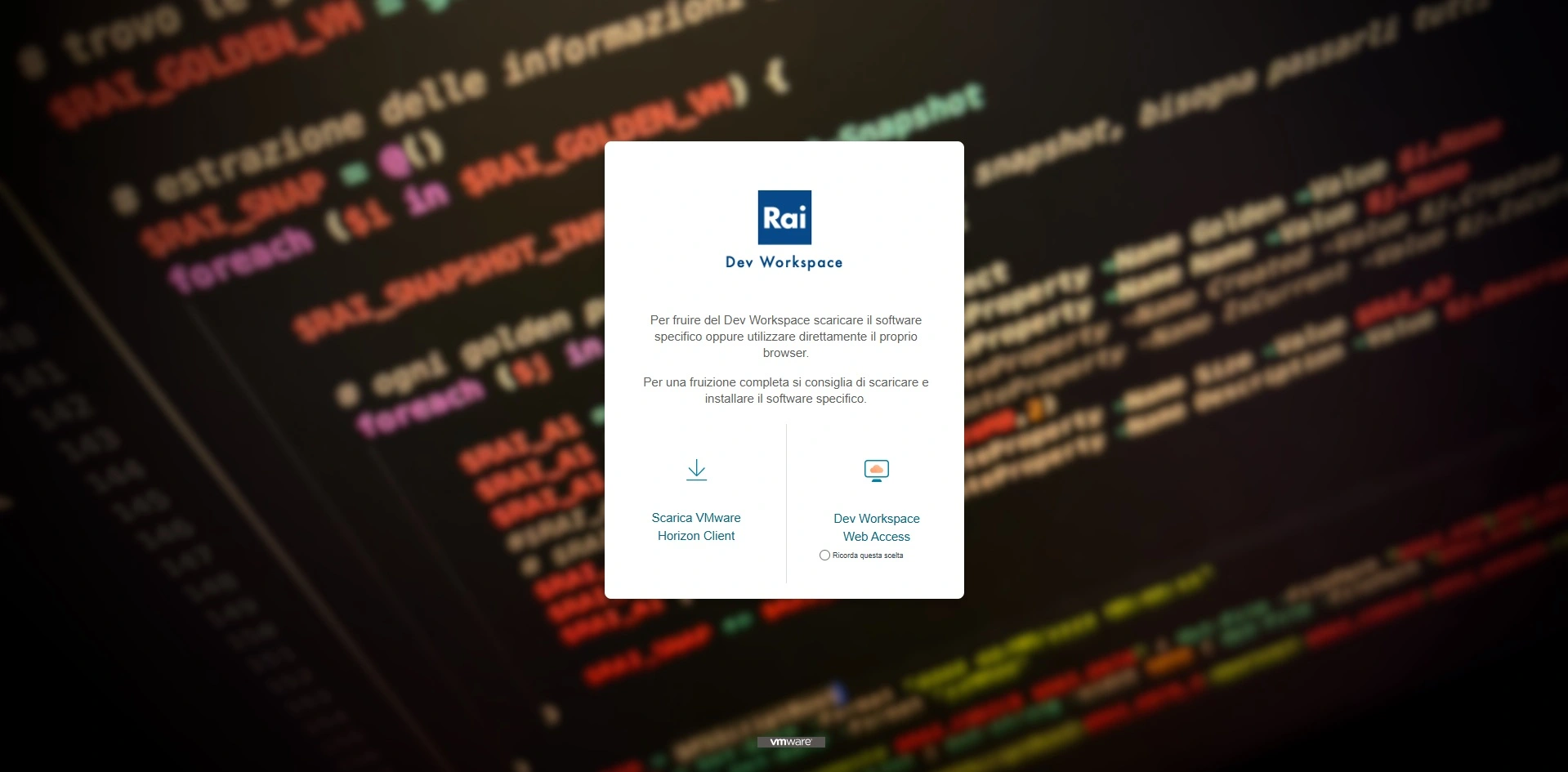
1) Open your browser (Chrome suggested) and connect to https://devpdl.rai.it
2) On that page click on “Digital Workspace Web Access”
(Note: this method doesn’t require extra software installation)
A2) Access to the Digital Workspace portal Method 2
1) Open “Omnissa Horizon Client”
2) Click on the Devpdl.rai.it button
(Note: you have already installed on your pc)
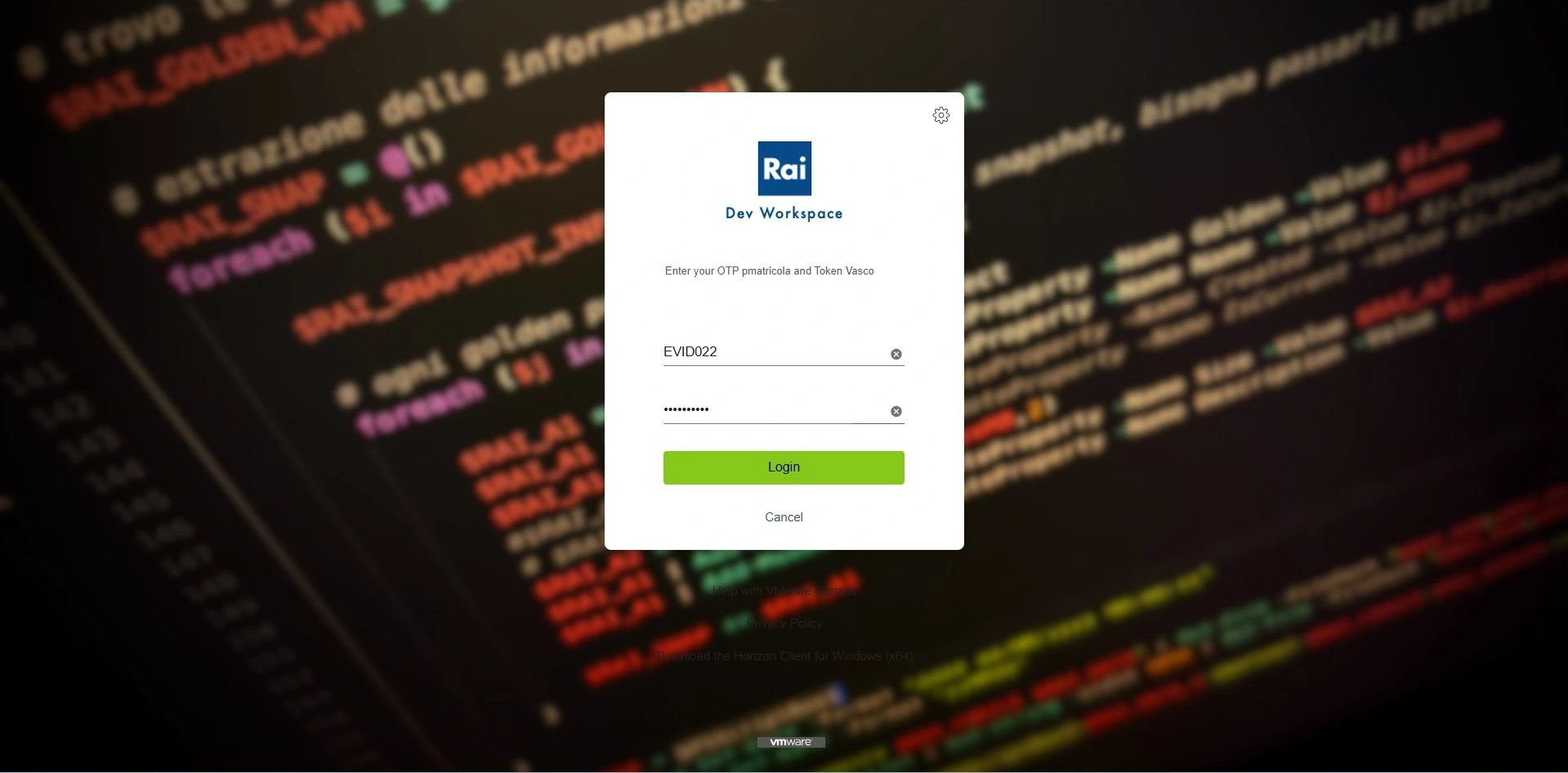
B) Authentication to the portal
Depending on the method you choose on the 1st step (A1 or A2) you will have different screen where to put the credential but the login process is the same:
1) PMatricola: this is your username EVID, i.e. EVID123
2) Vasco Token: here you have to insert your PIN + the code generated with VASCO i.e. if the PIN is 1234 and the generated token is 556677 the field should be filled with 1234556677
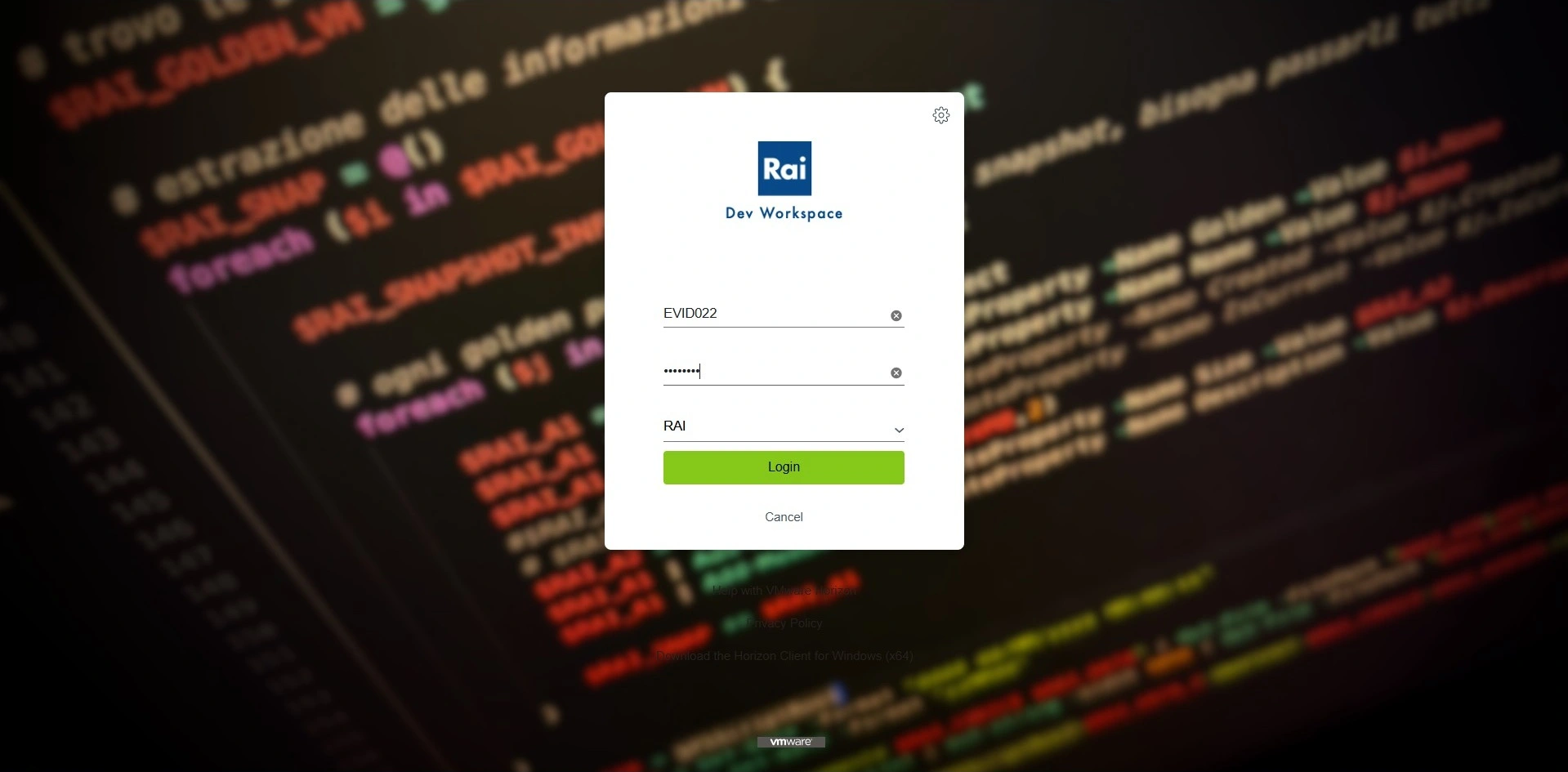
C) User credentials
1) insert the username which again is you “EVID” username, i.e. EVID123
2) insert the password for your account (you should know your password)
D) start the virtual client
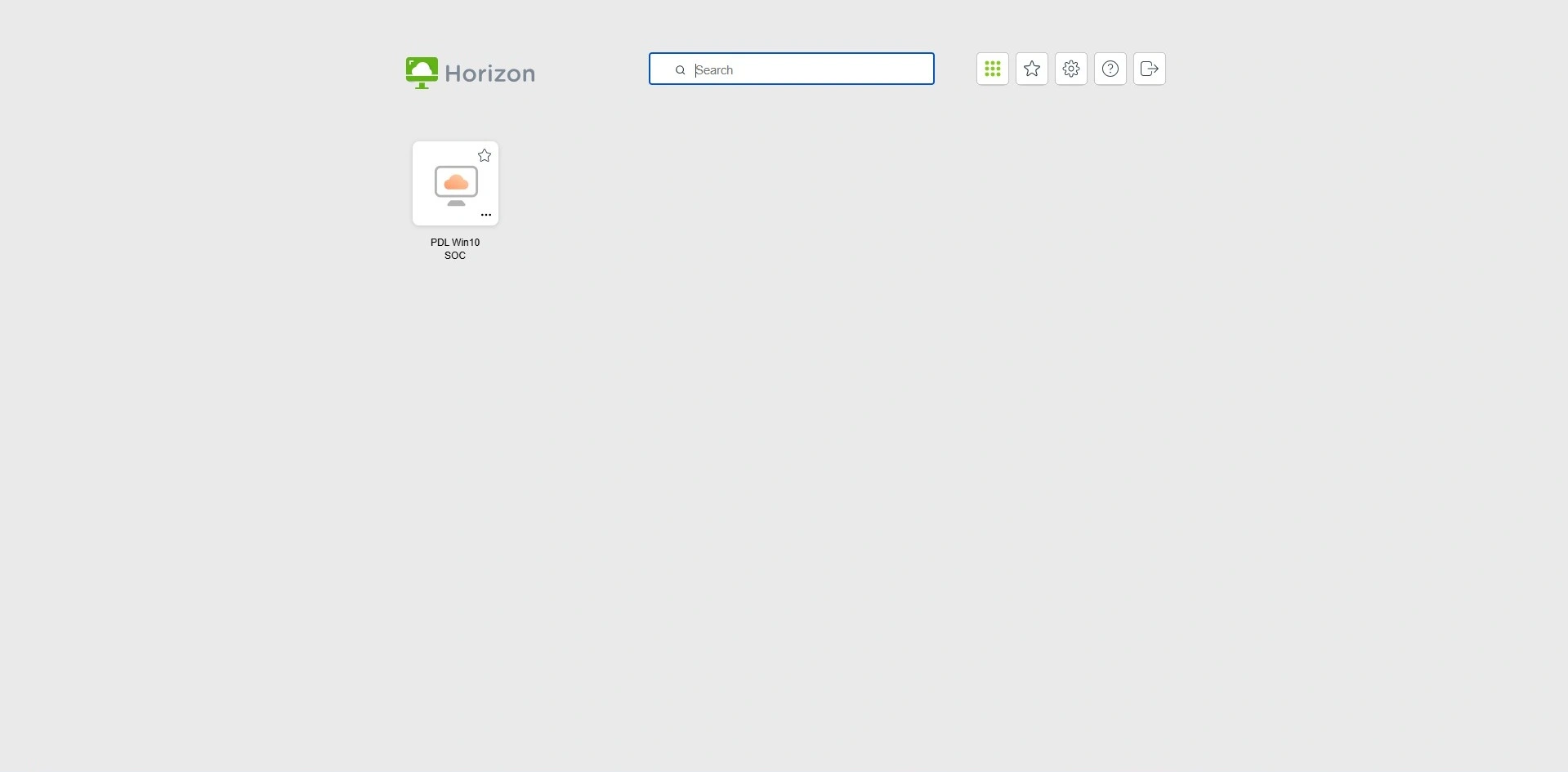
Once you successfully login you will have a button labelled: PDL Win10 Client Server, there you will need to provide again authentication to your personal virtual machine with your “EVID” username and build your own password following this rule: <YourPassword>+<PIN>+<VASCO token>
i.e. if the generated token is 889900 then the password should be like: MyPassw0rd1234889900
Note1: while connecting on PDL Win10 Client Server for the 1st time or after few days of inactivity the virtual machine will by default provide the Administrator as login user, so you have to change the user.
Note2: while on the log-in screen of PDL Win10 Client Server copy-paste is not allowed so you have to MANUALLY type the password.