147.9.6 How to transfer logs from RAI servers
During the management of remedy tickets, you will often find yourself saving Etere Memory logs. In order to analyze them faster or in order to forward them to the developer, you will have to bring the zipped logs package into your local workstation or into a folder that is reachable by the PCs in the Etere network.
To do so, follow this procedure:
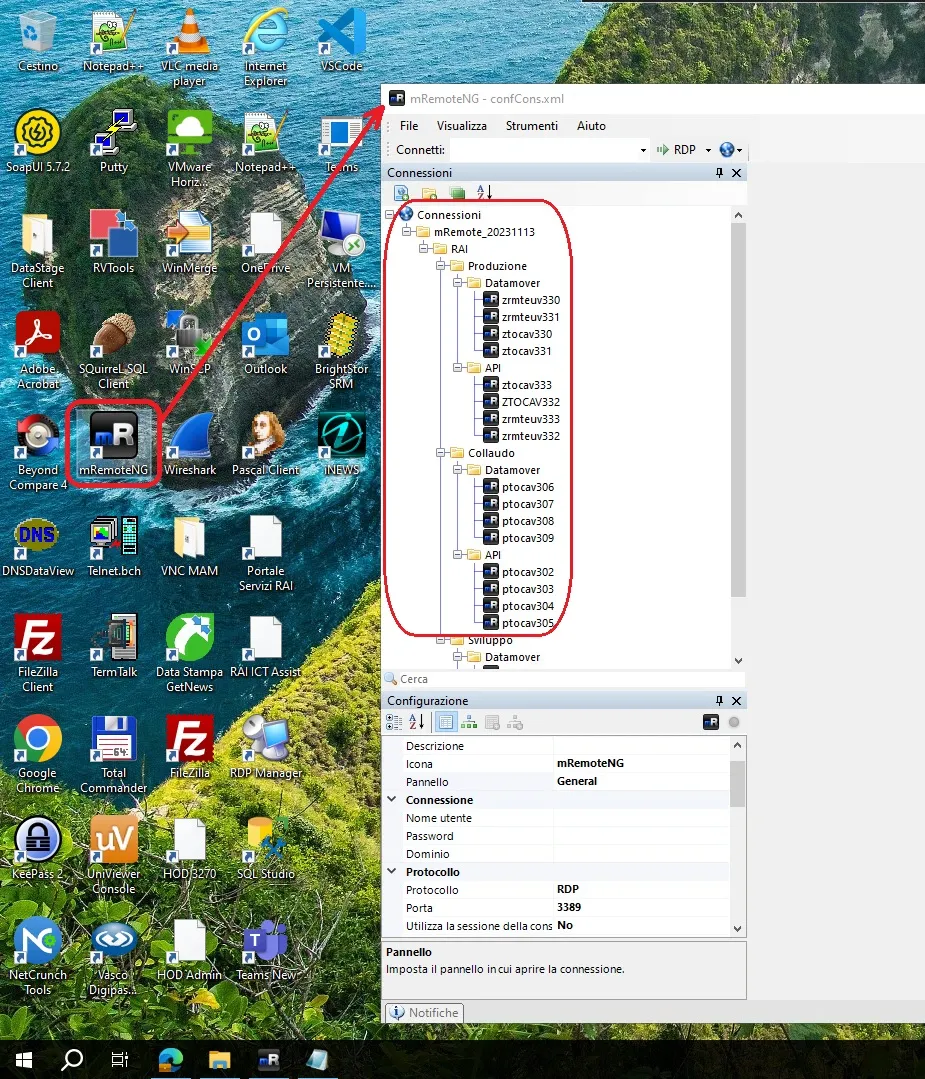
1. From Etere Memory server, save the logs directly into this folder: \\ict.corp.rai.it\nscav_usr\ETERE_SW\LOGS\. You should find it already set in the log saver form. Set it manually, if you don't.2. Access the same folder from any workstation that could be reached via mRemoteNG (i.e. zrmteuvXXX, ptocavXXX or stocavXXX). MremoteNG is already installed in the VM support uses to manage remedy tickets, you can find a shortcut on the desktop.
mRemoteNG_update
3. Connect to https://ftp.etere.com using incognito mode of the browser (which avoid saving the passwords locally).
4. Upload the logs (more information on chapter 20.5.0.0 ftp.etere.com) in FTPROOT/LOGS/16838/[Etere ticket number]. In case in the next days newer logs are required, save them in another subfolder named as the current date written backwards (YYYYMMDD).
5. DISCONNECT your session from https://ftp.etere.com when the upload is complete.
6. Close the browser.
You can now connect again to https://ftp.etere.com from your local workstation and download the logs to analyze.