20.3.1 Microsoft Quick Assist
Quick Assist is a Microsoft Windows feature that allows a user to view or control a remote Windows computer over a network or the Internet to resolve issues without directly touching the unit. It is based on the Remote Desktop Protocol (RDP).
Quick Assist was introduced in Windows 10. The Quick Assist functionality is not available in the Server editions of Windows, it is only available in the consumer versions like windows 10 and 11.
While Remote Assistance establishes a Remote Desktop Protocol (RDP) connection to the end user's computer (requires TCP port 3389 to be opened on the client machine and the firewall/NAT/router behind which the machine is), Quick Assist is cloud-based and requires one outbound connection from the helper's PC to the cloud service/Microsoft server, and a separate connection from the cloud service to the machine of the person getting assistance. There are no ports opened on the client device's firewall.
Quick Assist requires the support person to sign in using a Microsoft account before dispensing help.
How does it work
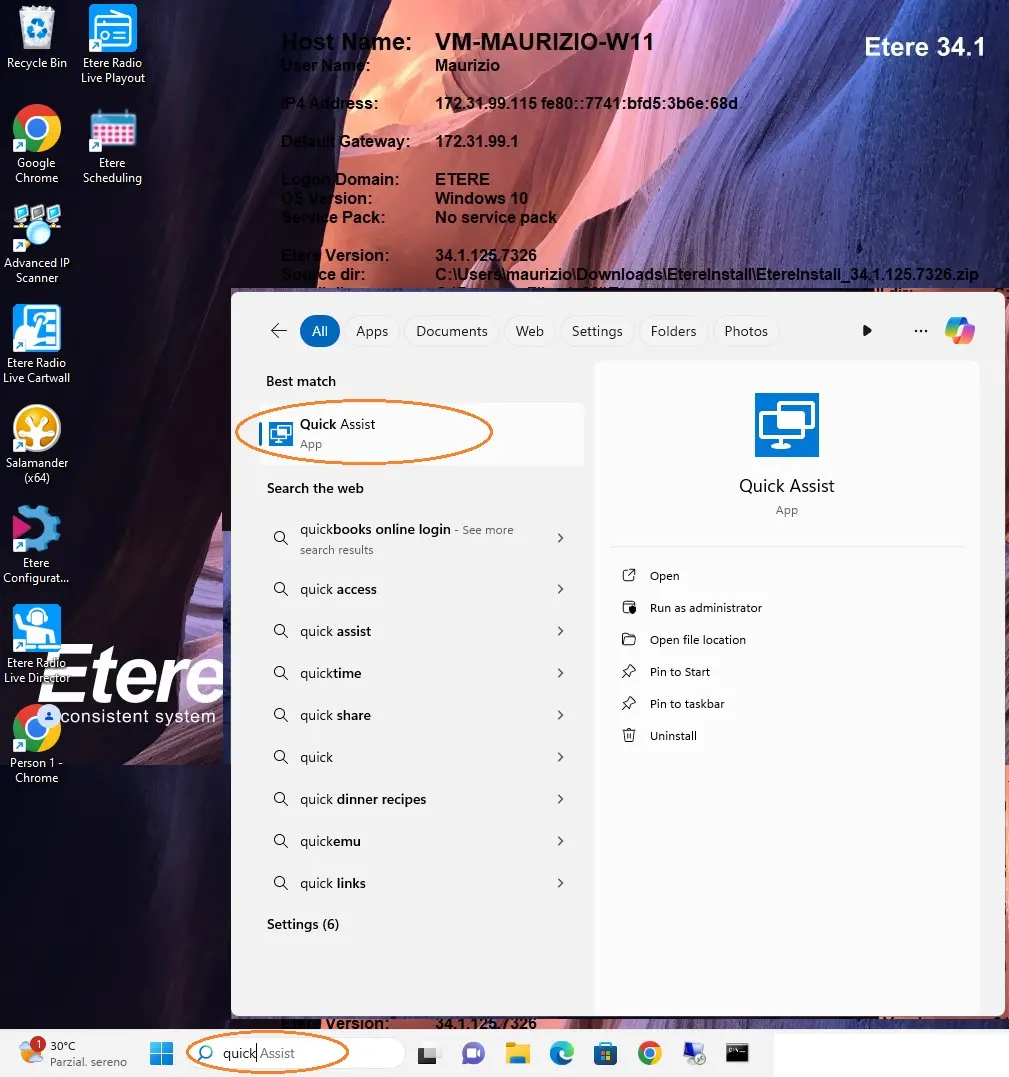
1. Etere support runs the Quick Assist program (see fig.1 - Quick Assist);
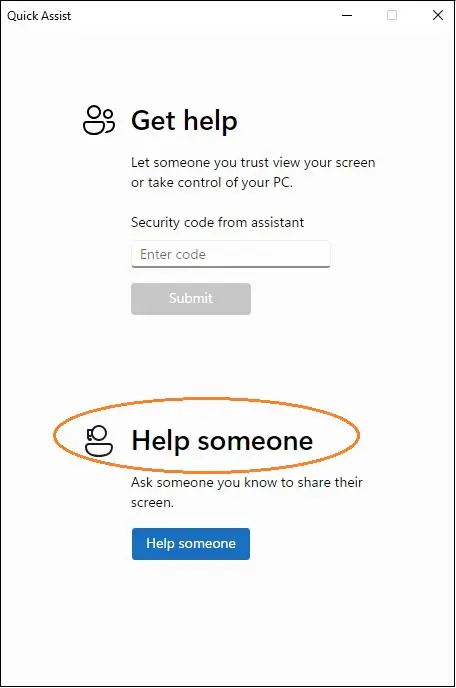
2. Etere support selects the "Help someone" option (see fig.2 - Quick Assist - Help someone);
3. Etere support login to Microsoft account with the following credentials:
USER: support@eterepte.onmicrosoft.com
PASSWORD: Vok24841
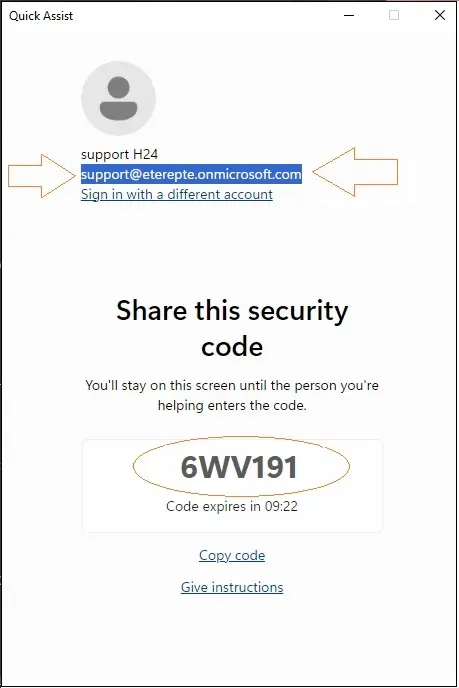
A security code is generated and must be communicated to the customer who needs assistance (see fig.3 - Quick Assist- Share security code);
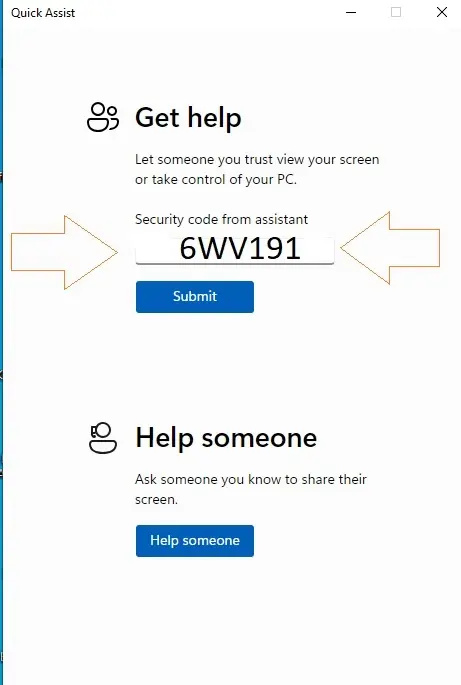
4. The customer who needs assistance from Etere support must run the Quick Assist program, select the "Get Help" option and enter the code communicated to him by Etere support (see fig.4 - get Help);
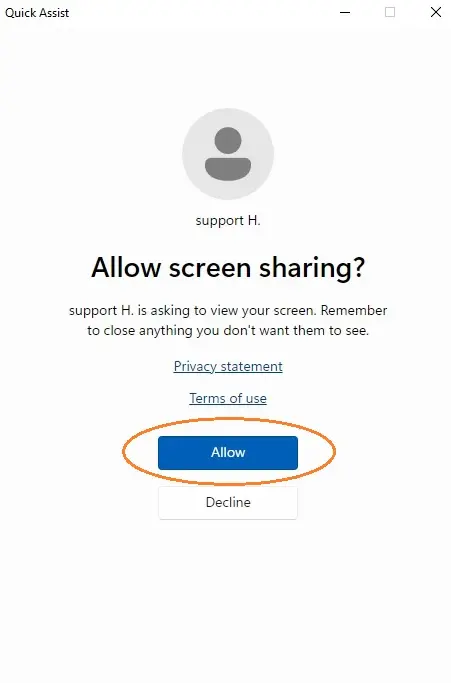
5. The customer must allow remote connection to the Etere support by selecting the "Allow screen sharing= Allow" option (see fig.5 - Quick Assist - Allow screen sharing);
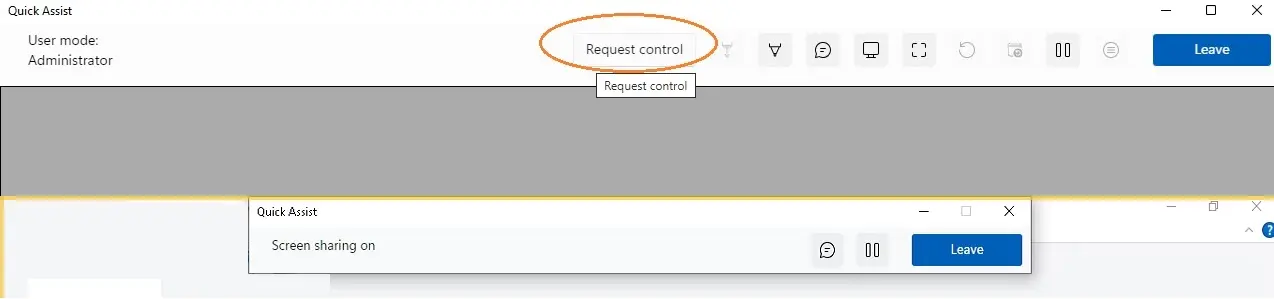
6. Once the connection has been established, Etere support must request control of the customer's computer by selecting the "Request control" option (see fig.6 - Quick Assist - Request control);
7. Upon receiving the access request, the customer must select the "Support is requesting control= Allow" option (see fig.7 - Quick Assist - Allow).