20.5 ftp.etere.com
Etere provides an FTP space located in Singapore, which can be used for file storage and transfer.
HOW TO CONNECT AND USAGE
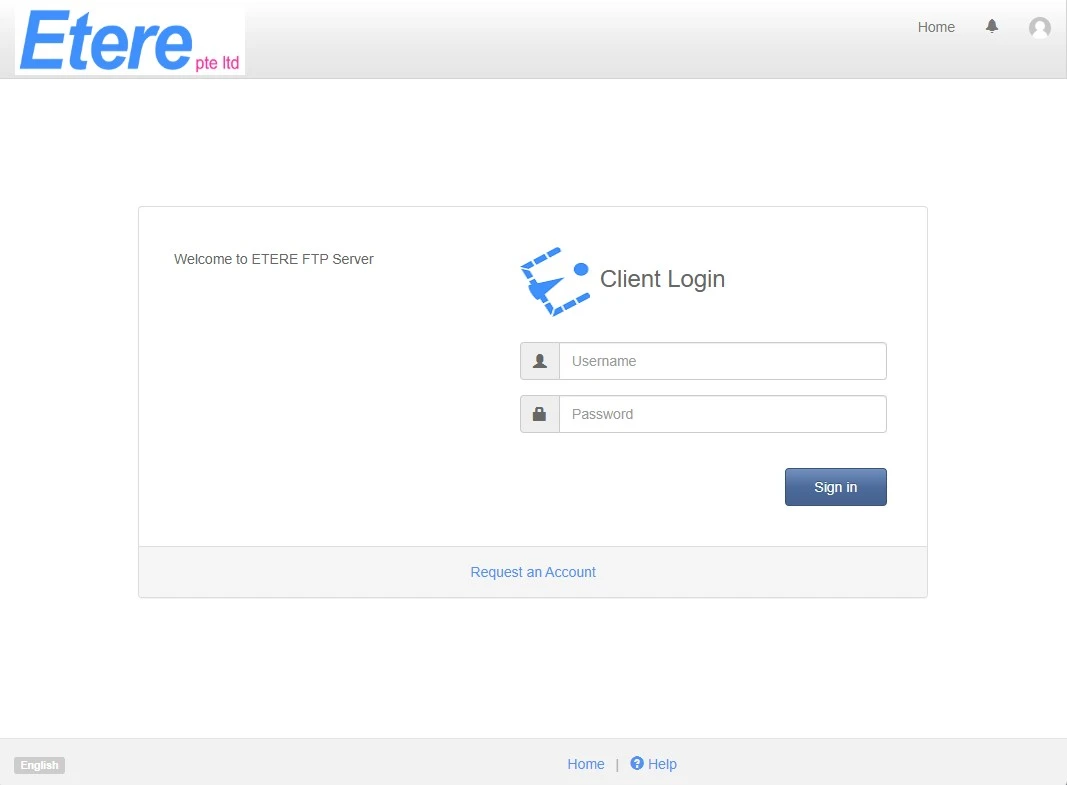
The most secure and most up-to-date method is to access the FTP service via a web browser at http://ftp.etere.com/. This is the preferred and approved method to use to transfer files, even from customers' PCs.
ftp_login_page
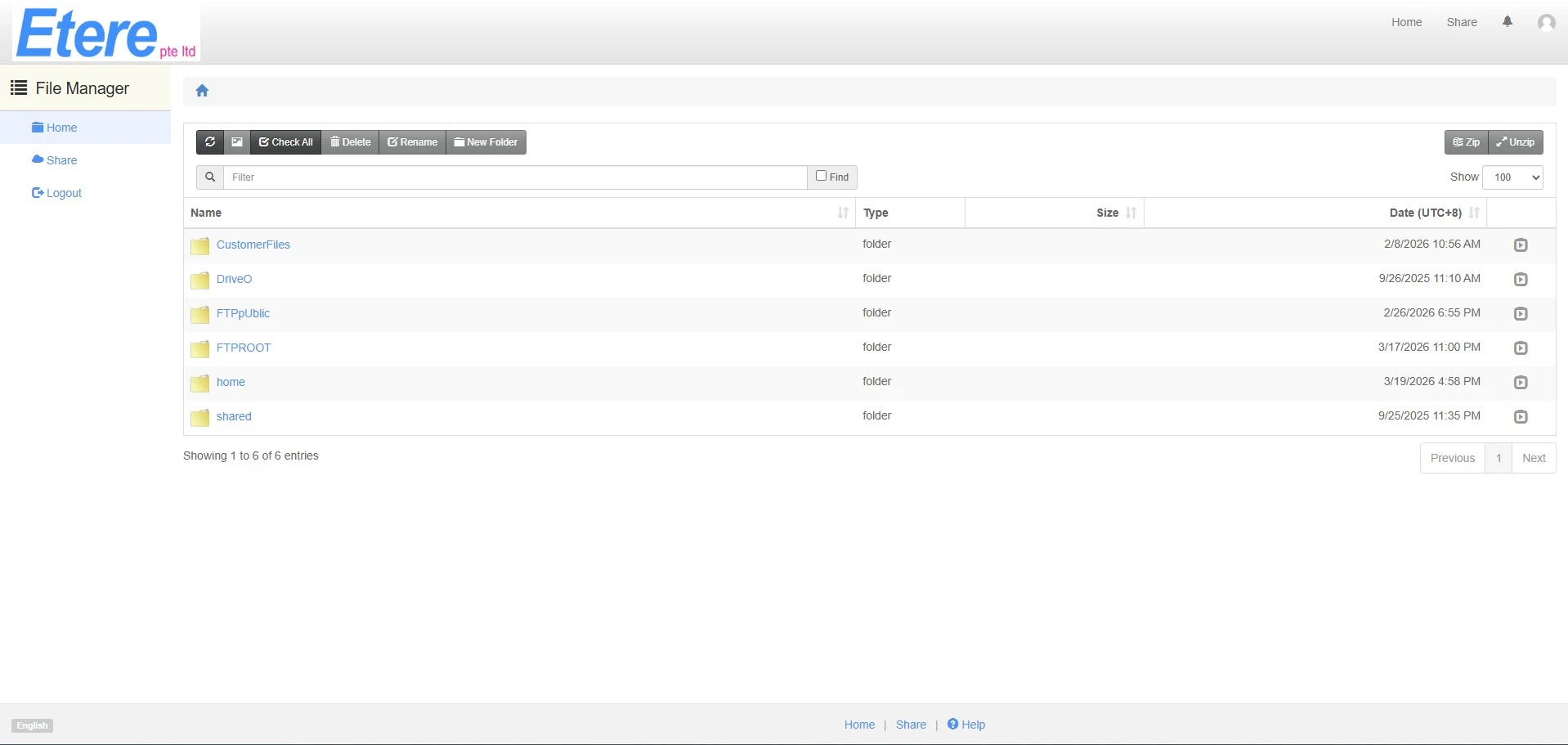
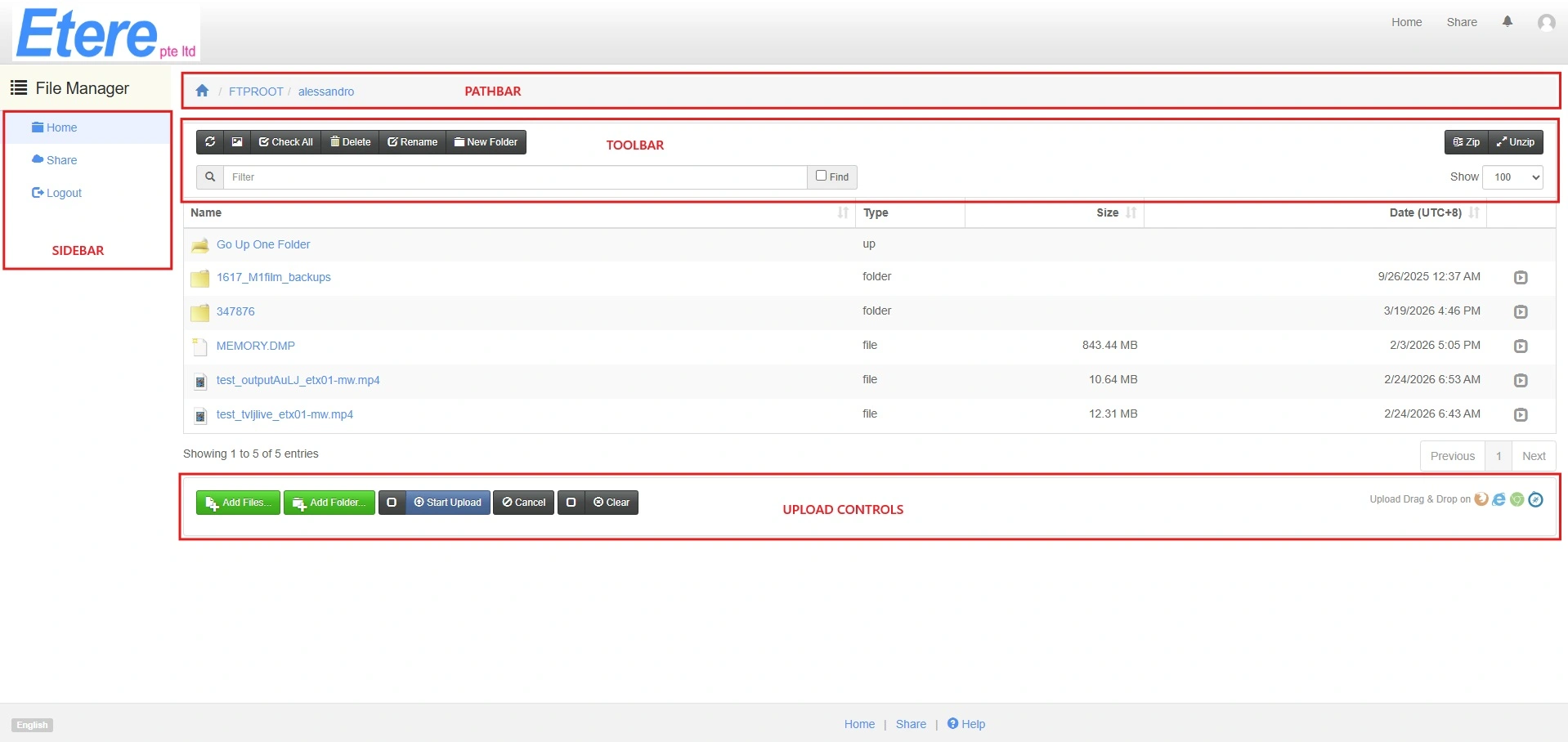
Once logged in, the folders available in the root directory are displayed. The web interface provides several sections and allows various operations to be performed on folders and files.
ftp_home_page
ftp_sections
SIDEBAR
• Home: Returns to the root directory
• Share: Displays the files currently being shared by the logged-in user, with options to update them or revoke access
• Logout: Logs out of the web interface
The same functions are available also here:
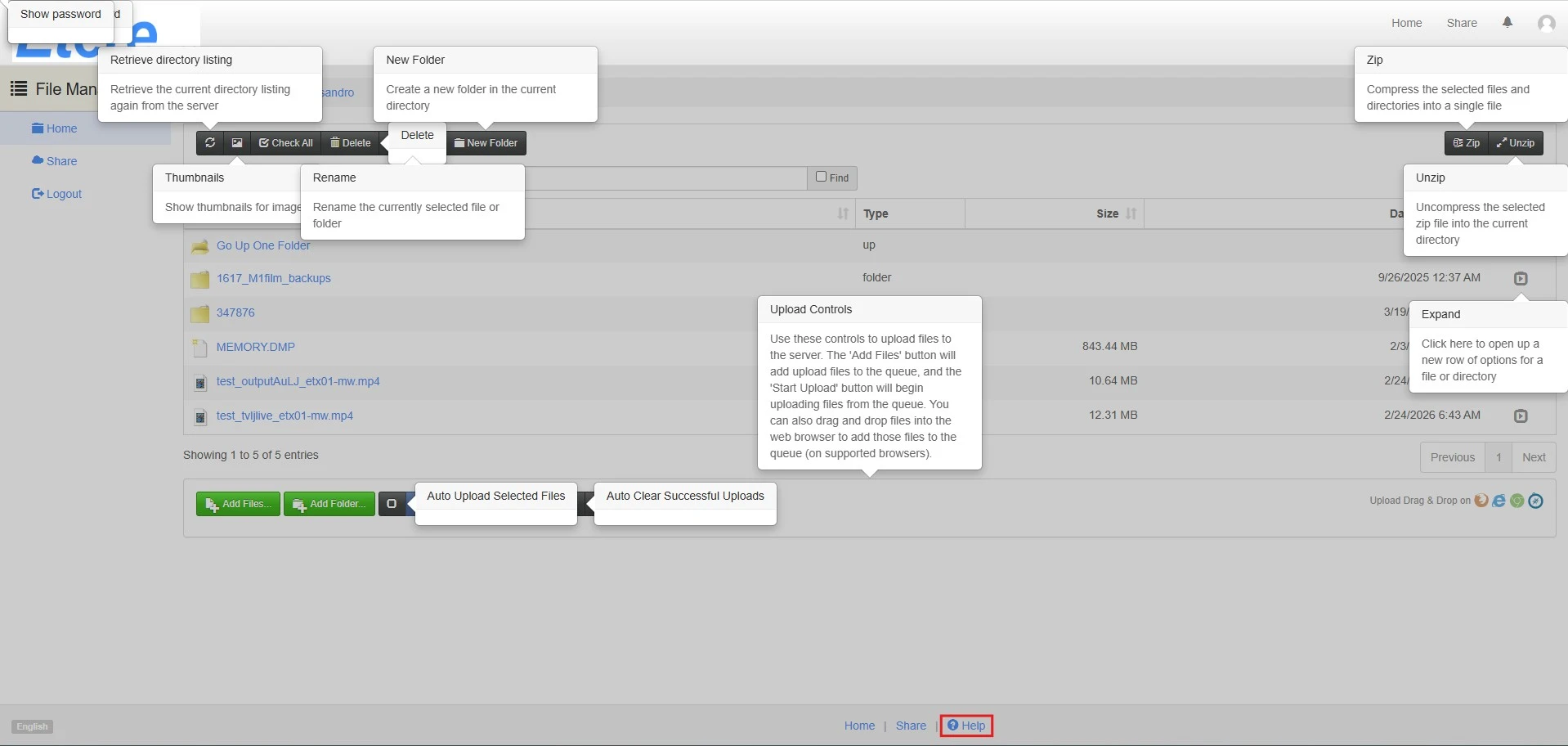
• At the bottom of the page, except for the logout button. Here is also available the Help button, which explains the different buttons and functions present in the current page.
ftp_help_button
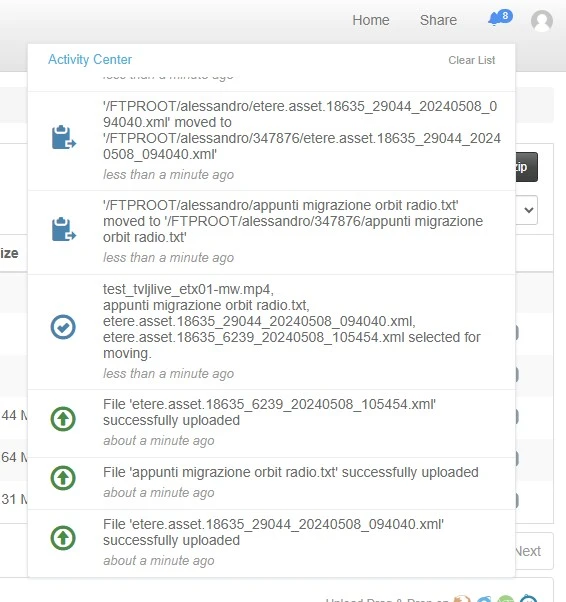
• On the top-right corner of the page. Here is also present the Activity center, which shows the list of notifications received.
ftp_activity_center
PATHBAR
This section displays the current folder path within the filesystem. By clicking on any folder in the path, it is possible to navigate back to a previous directory, or return to the root directory by clicking the Home button.
TOOLBAR
• Retrieve directory listing: Refresh the current view, retrieving again the directory listing from the server.
• Thumbnails: Shows or hide the thumbnail for images. If there are no images in the folder, the button is disabled.
• Check all/Check none: Select or deselect all the elements in the current folder. The shortcut CTRL+A does not work.
• Delete: Select an element and click this button to delete it permanently. If you click Delete before selecting anything, a warning will alert the user. A confirmation message will appear before actually deleting any file.
• Rename: Rename the last selected file in the folder.
• New folder: Create a new subfolder in the current directory.
• Zip: Allows to create a zip file containing the selected elements. You can give it a custom name and choose if download it immediately or save it in the FTP server.
• Unzip: Extract the zipped files in the current folder. If the files are already present, they won't be extracted. If the selected file is not a .zip archive, an error will be prompted.
Additionally, the Search bar allows to quickly find files in the current folder by typing their name or part of it, the Show option lets you choose how many elements you want to display per page.
UPLOAD CONTROLS
• Add files: Allows to select the files to upload. It's possible to add files also with a simple drag&drop on the browser page (only on supported browsers).
• Add folder: Allows to select a folder and add all its files at once. This function doesn't create a new folder in the ftp server, the files will be all uploaded in the current directory.
• Start upload/Auto upload: Once the files have been chosen, you can click the Start button on the right to begin the transfer of a single file or click the Start upload button to transfer all the files at once. If you enable the Auto upload by ticking the checkbox beside the button, the files will be uploaded automatically as soon as they are added.
• Cancel: Removes all the added files.
• Clear/Auto clear: Allows to remove all the successful upload operations. To remove only some of them, use the Cancel button on the right. Enabling the Auto clear, all the successful operations will be removed right after the end of the upload process.
DOWNLOAD
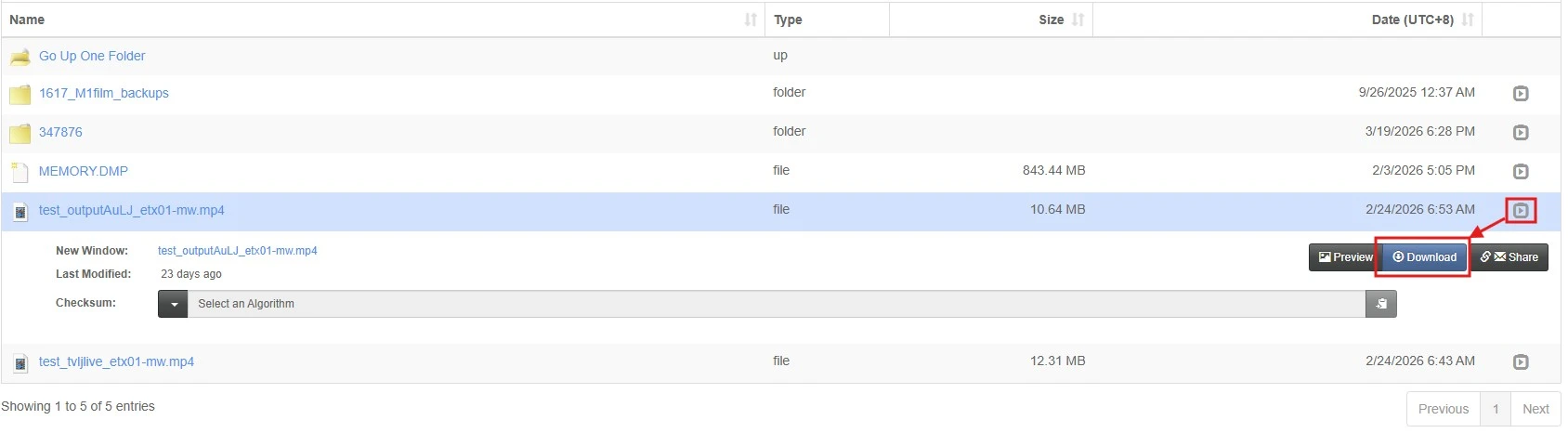
In ordet to download a file, it's enough to click on its name. Otherwise you can click the Expand button on the right, to show some additional options, including the Download button.
ftp_expand_download
SHARING
From ftp.etere.com it's possible to share a file with other people, creating a download link, with the possibility to send it by email as well.
Before starting the sharing process clicking on the Share button, it's possible to apply a checksum algorithm, choosing among MD5, SHA-1, SHA-256 and SHA-512.
ftp_expand_share_checksum
The sharing process goes through 4 steps:
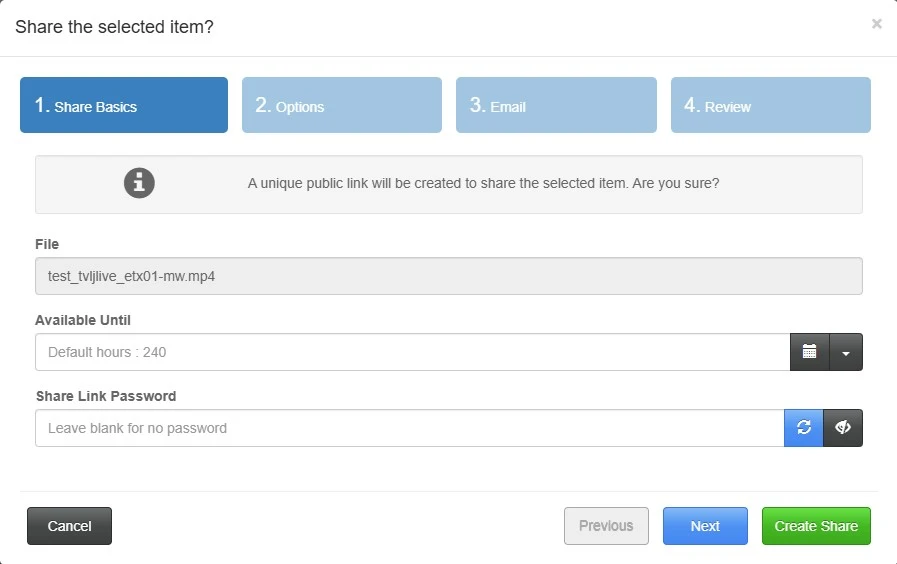
1. Share basics
Define here until which day and time will the download link be valid, selecting the day from the calendar in the Available until field. By default the link expires after 240 hours (10 days). It's also possible to not set any expiration date: click the arrow button beside the calendar and select "Never expires".
In case a password will be needed to download the file, set it in the Share link password field. If you click the Generate password button, a random password of 6 alphanumeric characters (including special characters) will be generated.
ftp_share_1
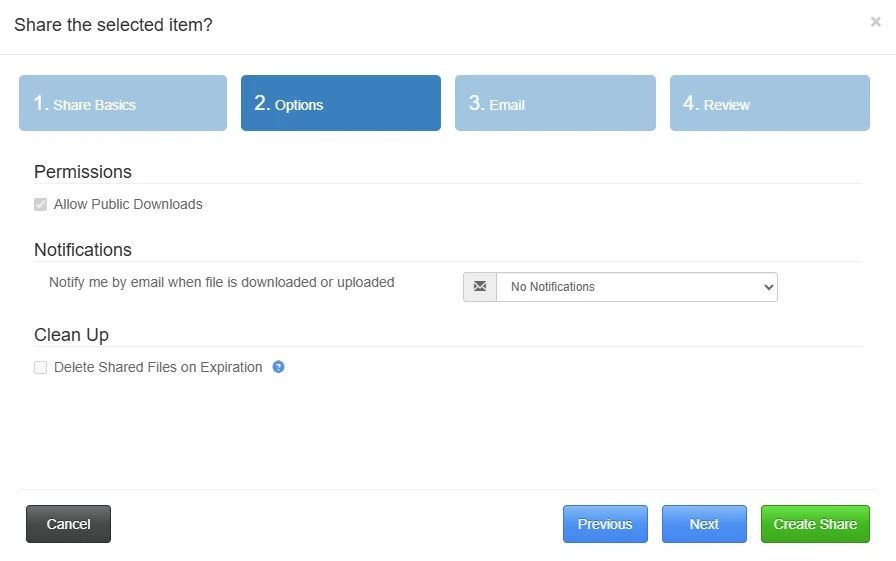
2. Options
Notify me by email when file is downloaded or uploaded: Choose if you want to receive notifications by email when the person (or the people) who receives the link download or uploads the file. You can choose to:
- Not receive notifications
- Receive notification only at the first access
- Receive notifications on interval of 5 minutes
- Receive a notification every time the file is accessed
Delete shared files on expiration: When the public share is expired, all the shared files will be deleted.
ftp_share_2
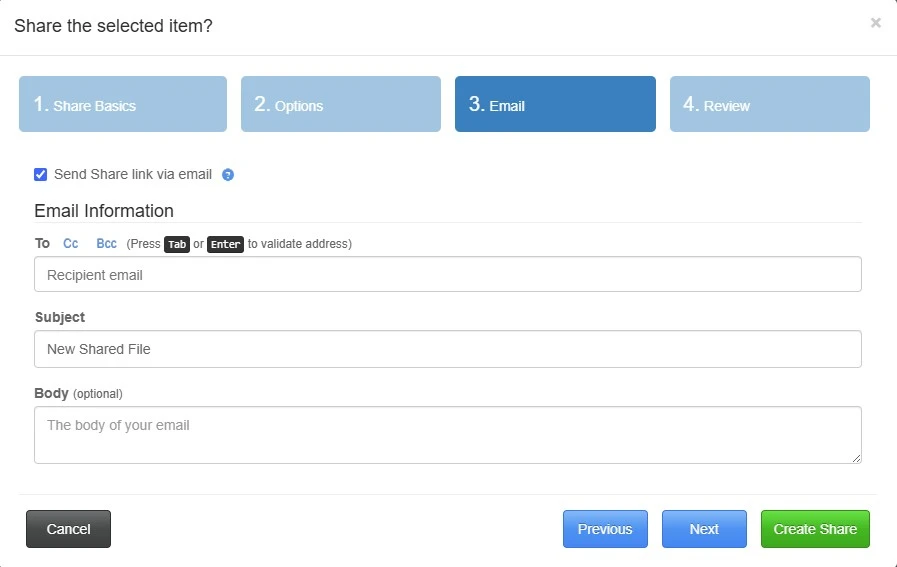
3. Email
Define here the details of the recipient of the email, who will receive the download link.
Send share link via email: Activate this flag to enable the fields below.
Email information: Type the recipient's email address, the email subject and an optional text to be sent along with the link. Click Cc and Bcc buttons to show the related fields.
ftp_share_3
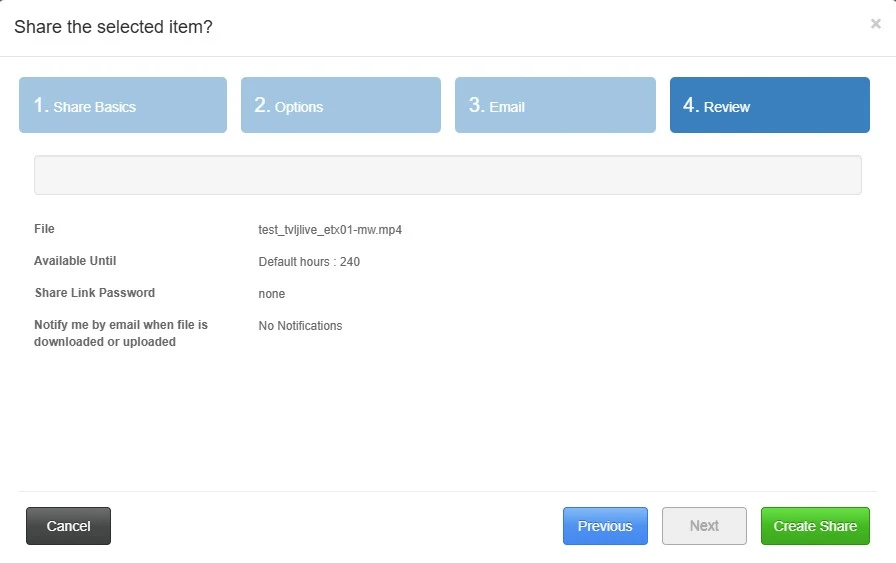
4. Review
Here is possible to see a summary of everything you've just set in the previous steps. You can go back to any step and change what you need, before clicking the Create share button to finalize the process.
ftp_share_4
IMPORTANT NOTE
1) To upload log files, use our direct link https://ftp.etere.com, this method is much more secure than the Filezilla client;
2) Passwords should never be entered on Filezilla with an insecure FTP;
3) Passwords should never be stored on Filezilla; it is not secure and can be easily decrypted;
4) Therefore, do not use Filezilla on PCs or VMs not belonging to Etere network.
FOLDER STRUCTURE
FTPROOT
This folder contains the customer area subfolders, where customers upload files through their reserved area in www.etere.com. These folders are created when the license is generated, so that all the customers with an active license have access to their reserved area and can upload files.
Customers can upload files through Upload section of the reserved area and they receive a confirmation message if the upload is successful. However, they actually can't see any file uploaded in My Files section, for security reasons.
Support can instead see and download the uploaded files accessing /FTPROOT/[customer_code]/.
In this folder are present also the logs customers send to support through the log saver procedure. They can be found in /FTPROOT/LOGS/[customer_code]/.
Support and developers teams use this space also to store some personal files in their own subfolder.
FTPpUblic
Here are present 2 relevant subfolders: LastEtereVersion and PublicDownload.
/FTPROOT/LastEtereVersion/Etere Software upgrade contains the last Etere and Etereweb versions released.
/FTPROOT/LastEtereVersion/Etere Software upgrade/Temporary contains the .dat files support generates to upgrade Etereweb on customers' systems.
/FTPROOT/LastEtereVersion/Etere Software upgrade/Previous Versions folder stores some of the older Etere and Etereweb versions. The content of this folder can be seen also from etere website's reserved area, at the section Software Updates.
/FTPROOT/PublicDownload instead contains the files visible from the section Public Files of the reserved area. Here are stored some old versions, as well as the standalone installer (EtereInstall.exe) and the prerequisites needed by Etere to run, downloaded automatically by Etere Update.
CustomerFiles
Here are present only subfolders named as the customer codes. Each folder (beside some exceptions) contain only 2 subfolders: newlicense, which contains the last updated Etere license (see chapter 3.1.6.0 Customer license for more information about it) and newresource. For a few customers who requested customized modules, you could find also the folder CustomFiles, with the files needed by the custom applications.
Due to different permissions than the ones assigned to user upload2, if you access with your own user you'll be able to see additional folders:
• DriveO
• home
• shared
It's worth mentioning that customers don't access to ftp.etere.com with user upload2 (and its password should NEVER be provided), but with user upload. The credentials used are transparent for customers and are embedded in the code of the application that connects to Etere FTP space (e.g.: Etere modules' log saver).