4.1.6.1 Use cases
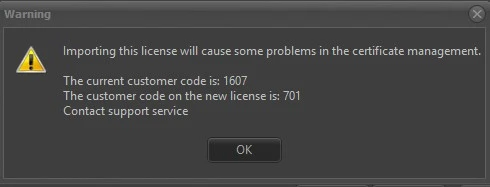
WRONG CUSTOMER CODE
license_wrong_code
In case you see this warning, it means that you are trying to import a license file for a customer code that is different from the one currently installed in the database. Cancel immediately the operation and pick the correct license file.
Etere in this case allows you to go on, but you will be required to insert the password "etere". Anyway, this operation can be intentionally made only in support's test environment, NEVER in the customer's system.
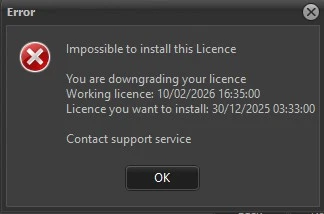
LICENSE DOWNGRADE
license_downgrade
This error appears when the license file you're trying to import is older than the one currently installed. The message in the image, for example, says the license already installed was made on 10/02/2026, while the one the user is trying to install was made on 30/12/2025, and Etere does not allow this operation.
Since the license in the FTP (or the reserved area, it's the same file) is always updated because it gets overwritten every time a new one is generated, probably the user took an old file instead of downloading the license from the reserved area, thinking it could have worked anyway.
Anyway, it's always good to ask to the customer where did he take the file from. Marketing department must not be contacted in this case.
If the customer just downloaded the file or if he choose the automatic import, although it's a very rare occurence, you should connect remotely and try yourself. If you can reproduce the same behaviour, report the issue to Fabio or Alex immediately. It means something went wrong in the generation of the license and it must be generated again.
WHAT TO DO BEFORE UPGRADING THE LICENSE
Before providing to the customer the license file, or telling them to download it, follow these steps:
1. If in the new license a module has been added or extended or enabled/disabled for one or more stations, you can see that in support. Check if what you see there match the new license.
2. Check the modification date in ftp.etere.com, it should be close to the time and date when Fabio or Alex generated the license.
3. Check the license's last update date and time in the reserved area.
Note: Remember that from FTP to www.etere.com the license takes about 60 minutes after it has been generated.