3.1.3 3CX APP IOS and ANDROID phone Installation
The 3CX app for
Android and iOS allows you to seamlessly take your business communications and
contacts with you wherever you go. Access the company phonebook, manage calls,
answer chats and respond to all kinds of messages - from the palm of your hand.
There’s no need to use your personal mobile number for business calls
anymore.
Step 1: Install the Android app or iOS app
Install the Android
app from the Google Play Store or Install the iOS app from the App store.
Open the app, read and accept the license agreement and authorize the permissions the app needs
(camera, microphone).
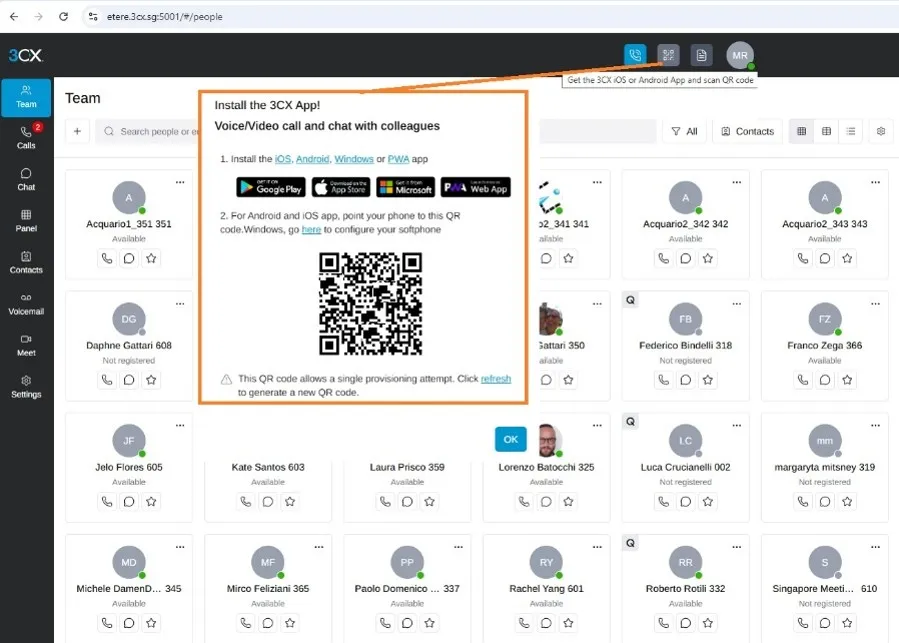
(QR Code Location in 3CX Web Client)
Open your web client https://etere.3cx.sg:5001/ and click on the QR code in the top right corner.
Step 2: Configure your Extension: Scan the QR code
Fig.01- Configure your Extension: Scan the QR code
Login Credentials Username and password must be requested from the responsible manager
Open your camera on your Android device and scan the QR code shown on your screen.
Grant all the necessary permissions in the next screens.
Make sure to follow the battery optimization instructions for the app to work efficiently.
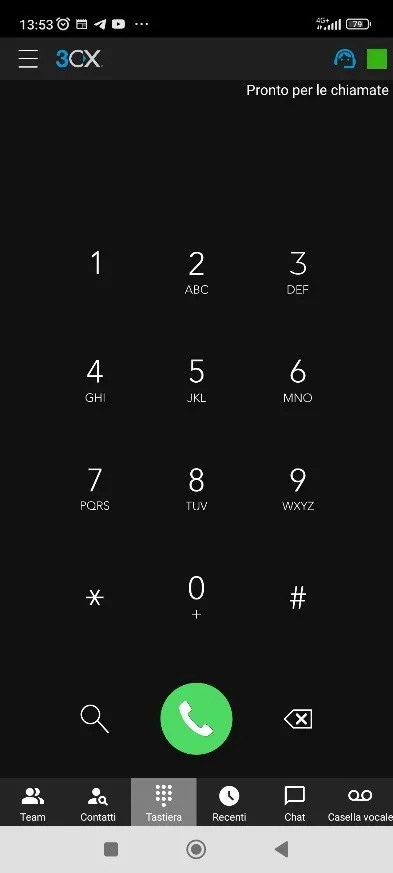
Your extension is configured and you’re now “Ready for calls”!
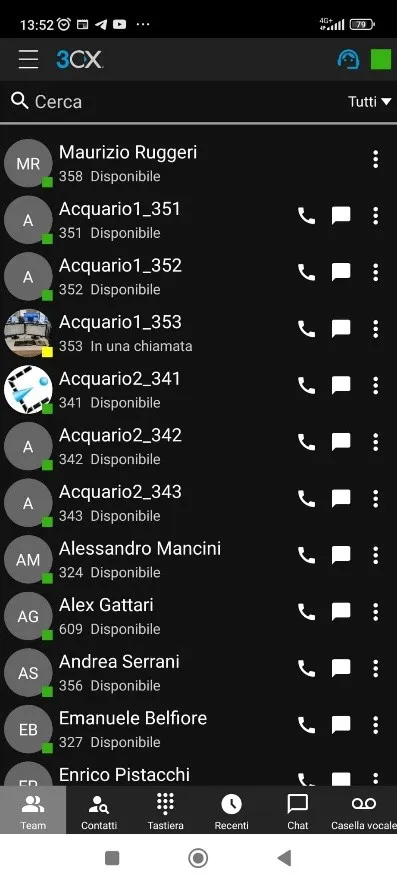
Fig.02 3CX APP
Making a Call
Making a call with the Android app is quick and easy. You can either dial a number in your keypad and hit the call
button or search for a contact from your “Contacts”. Search by name, number or email, and then tap on the phone icon next to the contact.
Once you’re in a call, you can seamlessly perform a number of actions, including:
“Transfer” will give you the option to “Blind” without the need for you to speak to the receiver, or “Attended” will
transfer the call after you first speak to the receiver to see if they accept the call and press “Join”.
“Conference” allows you to create an ad hoc conference call, adding more participants to join the conversation.
“Rec” allows you to record your conversation.
“Video” adds video to your call for face to face communication.