4.1.2 Advanced search and customer section
On the left side of the incident list page, we find the advanced search and the customer section.
ADVANCED SEARCH BOX
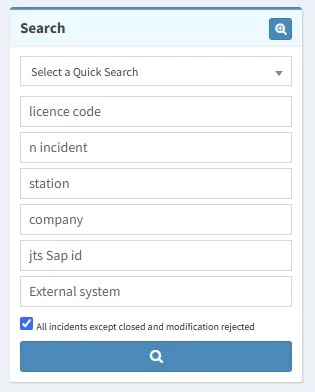
The advanced search box, contains the most used fields when searching tickets in support:
advanced_search_box
• Quick search template: Each user can create customized search templates to quickly launch specific searches. You can select an existing template from here. See below to know how to create one.
• License code: Search all the tickets of a specific customer code.
• N incident: Search a specific ticket. In case the ticket has been deleted or the number does not exist, an error message will be displayed.
• Station: Search by the station name, taken from the customer's license.
• Company: Search by the company name, taken from the customer's personal data.
• Jts sap id: Extract all the tickets for a specific contract ID.
• External system: Retrieve all the tickets in which a specific external code has been inserted.
□ All incidents except closed and modification rejected: If enabled, excludes from any search made with these filters (advanced search is not affected), all the tickets in status "Closed" or "Modification rejected".
ADVANCED SEARCH FILTERS
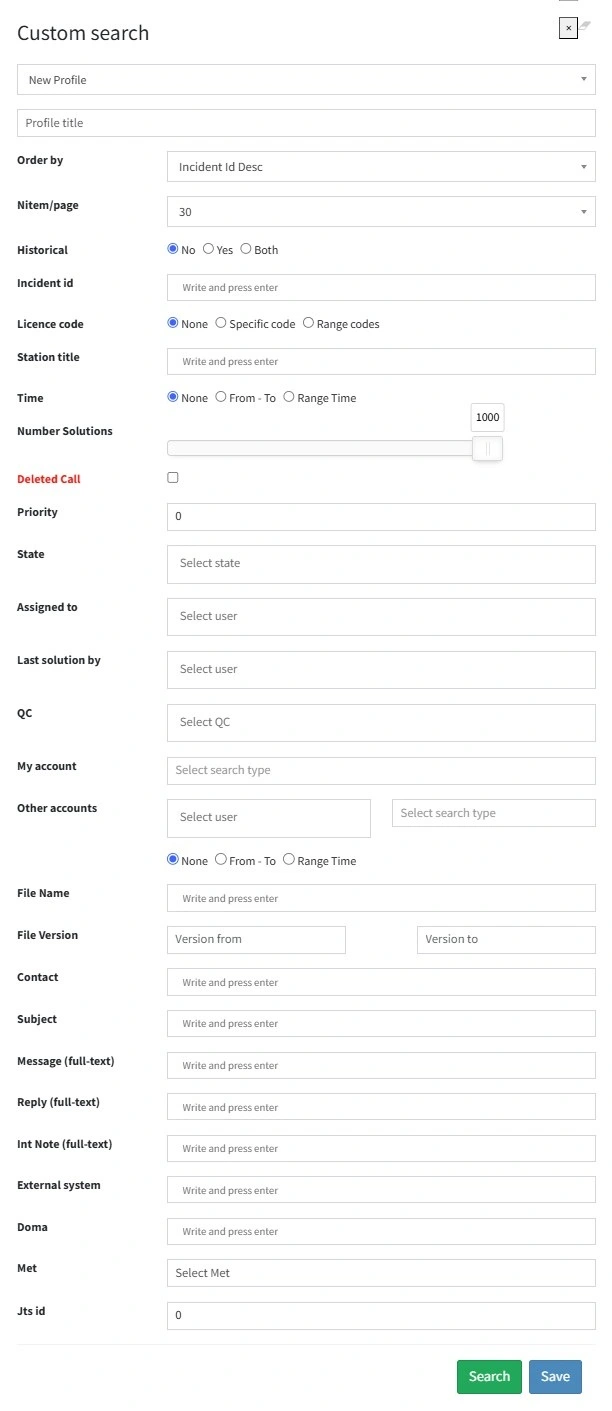
Clicking on the button "custom search", it's possible to access to the complete set of filters of the advanced search:
custom_search_filters
• Order by: Select an order to display the search results. The possible values are the same as the ones selectable in the incident list page.
• Nitem/page: As the "Show" function explained in the previous chapter, it allows to choose how many result per page should be displayed. Possible values are: 30, 60, all.
• Historical: Choose whether to query the historical support database or not. NO: The historical db will not be queried and only the most recent tickets are found. YES: Support will search only among the tickets archived in the historical db. BOTH: Support will search in both the historical and production database.
• Incident id: Search a specific ticket number.
• License code: Search all the tickets of one or more specific customer codes. Combined with other filters, it can be useful for example to find something happened in the past to the same customer. You can search also within the tickets of a range of codes.
• Station title: Search all the tickets of one or more specific station titles. It can be useful in case you know the station title but you don't know the customer code.
• Time: With this filter it's possible to find all the tickets received within a certain range of dates or all the tickets which last solution's time falls within a specific range of dates.
From - To
- Incident reception: Look for all tickets received in the range of dates specified.
- Response in solution: Look for all tickets which last solution has been created in the range of dates specified.
Range time
- Incident reception: Look for all tickets received in the following range of days: From today, From a week, From a month, Older than 10 days.
- Response in solution: Look for all tickets which last solution has been created in the following range of days: From today, From a week, From a month, Older than 10 days.
• Number solutions: Filter the search by the number of solutions.
• Deleted call: By default, the deleted incidents are not visible anymore, even searching the specific incident number. However it could happen to delete a ticket by mistake and with this flag it's possible to retrieve it and restore it.
• Priority: Filter the search by the ticket priority.
• State: Filter the search by the current state of the ticket (in other words, the state of the last solution).
• Assigned to: Search all the tickets assigned to one or more users.
• Last solution by: Search all the tickets which last solution has been created by one or more specific users.
• QC: Search all the tickets which last solution's QC is set as APPROVED, REJECTED or NOT VALUATED.
• My account: Filter the search choosing among these options:
- At least 1 solution written by me: All the tickets with at least 1 solution created by the current user.
- At least 1 solution written by me or assigned to me: All the tickets with at least 1 solution created by the current user or which last solution is assigned to the current user.
- Assigned to me or turni: All the tickets which last solution is assigned to the current user.
- To approve: All the tickets which last solution's qc is set as NOT VALUATED.
• Other accounts: This filter works like the previous one, but allows to select also one or more different users. The search type options available are these ones:
- At least 1 solution written by users
- At least 1 solution written by users or assigned to users
It's also possible to specify a range of days like the "Time" filter, but it's not possible to specify whether to look for the incident reception or the response in solution. Other than the time, the search it's just filtered by one of the 2 options mentioned above.
• File name: Look for all the tickets which Filename field contains all or part of the text written here.
• File version: Look for all the tickets which Version field contains all or part of the text written here.
• Contact: Look for all the tickets which Contact field contains all or part of the text written here.
• Subject: Look for all the tickets which Subject field contains all or part of the text written here.
• Message: Narrow the search by looking for all the incidents which Message field contains the text written here.
• Reply: Narrow the search by looking for all the incidents which Reply field contains the text written here.
• Int note: Narrow the search by looking for all the incidents which Internal Note field contains the text written here.
• External system: Search all the tickets which ExternalSystem field contains all or part of the text written here.
• Doma: Look for all the incidents that have a file loaded in doma named like the text written here. It's not mandatory to specify the exact filename, you can even enter a part of it.
• Met: This filter is useful to retrieve all the set of tickets for a specific MET. When a MET is created by Maurizio, he specifies the creation date and the progressive version number at the end of the name. The elements in the list are ordered from the last version to the oldest one.
Note: Since the order of execution of the MET tickets is provided by the priority, before starting the tests is suggested to order them by "Priority asc" and to show them all, as described in the chapter 3.1.1.0 Incidents list page.
• Jts id: Look for all the tickets for a specific Jts ID. See chapter 3.1.1.0 Incidents list page for the definition of Jts ID.
QUICK SEARCH TEMPLATES
In case a search is launched often, it's possible to save it in a search template and launch it directly from the advanced search box, without the need to set the filters every time.
In order to create a template, follow this procedure:
1. Open the advanced search
2. In the first combobox select "New profile" and type a name for the template
3. Set the needed filters
4. Confirm with the Save button
The created templates will be displayed in the advanced search box, under the Custom node.
To modify a template, the procedure is almost the same. The only difference is that you have to select the template to edit instead of "New profile" at the step n.2. When you select a template there, all the related saved filters and the values set are displayed in the form.
To delete a template, simply select the template to remove and click the Delete button.
CUSTOMER SECTION
This section contains 2 tabs. The Customer details tab displays some data about the customer; the Customer search tab allows to quickly search for the customer's tickets.
Note: This section is not visible if any ticket has been selected.
Customer details
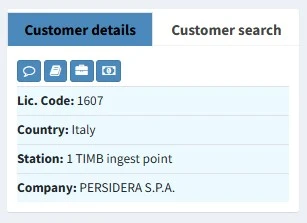
customer_details_box
In this tab you can find the following information about the customer:
• License code
• Country
• Station
• Company
Moreover, a little toolbar provides these buttons:
• Open note: This form contains some additional information about the customer. It can't be edited by standard support users.
• Open contacts list: Displays a list of the contacts retrieved from the customer's personal data in support database. The email addresses in this list marked with a tick in "Supp." column are the ones enabled to receive emails sent from support website. Rachel Yang is in charge to modify this list and to enable or disable an address for support (Supp.) or invoicing (Inv.). When you receive such request from a customer, forward the email and the ticket to Rachel and send a standard reply to the customer.
• Open customer area: Opens the support customer area in a new tab of the browser. See chapter 3.1.5.0 Customer area for more information.
• Open license: Displays the customer license, that lists all the purchased modules with the related expiry date, quantity and licensed stations. A detailed description of the license form is available in the chapter 3.1.6.0 Customer license.
Customer search
This tab allow to launch the following customer-related searches:
• Only from the selected customer: Search all the tickets of the selected customer.
• From a week: Search all the tickets of the selected customer which last solution has been modified in the last 7 days.
• From today: Search all the tickets of the selected customer which last solution has been modified today.