4.1.6 Customer license
From support is possible to look at all the modules included in a license, each one with its own expiry date, quantity and enabled stations. However, before treating its visualization and how to read it, it's worth explaning what's inside the license file, how it can be downloaded, how it can be installed and what to do in case a customer requests to support to install it or asks about something the license do not include.
LICENSE FILE
The license is generated by Fabio or Alex, using a specific software.
It is a file named as License[customercode].licence (e.g.: License1607.licence) and it can be found in:
• Etere FTP server (ftp.etere.com) at the path /CustomerFiles/[customercode]/newlicense. The path is accessible through Windows File Explorer, using an FTP client like Filezilla, or through any browser at the URL https://ftp.etere.com/. For any of the mentioned methods you can authenticate with your own domain user and password (in this case you should have the permissions to see more folders in the root) or with the user upload2.
• The customer's reserved area of the website www.etere.com, browsing through the left sidebar to the section Licences > newlicense. Since Etere support doesn't know the customer's reserved areas password, they have a master password which grants the access to any customer area on Etere website. The website connects to the FTP server, so in the newlicense folder you see the same content you see accessing with the other methods.
Note: Every time a new license is generated, the old file in the FTP server gets overwritten.
A license file can be opened and modified with any text editor, but in order to be recognized by Etere and actually used, it can be only saved using Fabio's software.
This is how a license file is structured:
<license>
<header Version="36.0.0.0" Type="Modules" CustomerCode="701" User="1" Station="MAM" CustomerDesc="OFFICIAL TESTING SYSTEM ETERE PTE LTD" National="Yes" Split="0" StationType="0" CreationDate="2026011318:59" /><modules code="-ET0077*1*0*@001-ET0078*1*0*@001-ET0079*1*0*@001-ET0087*1*0*@001-ET0089*1*0*@001-ET0080*1*0*@001-ET0081*1*20260330*@001-ET0082*1*0*@001-ET0083*1*0*@001-ET0084*1*0*@001-ET0090*1*0*@001-ET0092*1*0*@001-ET0093*2*0*@001-ET0094*7*0*@001-ET0036*1*0*@001-ET0163*1*0*@001-ET0166*1*0*@001-ET0173*1*0*@001-ET0174*8*0*@001-ET0176*1*0*@001-ET0117*1*0*@001-ET0113*1*0*@001-ET0115*1*0*@001-ET0116*1*0*@001-ET0122*1*0*@001-ET0133*16*0*@001-ET0135*32*0*@001-ET0150*1*0*@001-ET0151*1*0*@001-ET0155*1*0*@001-ET0286*2*0*@001-ET0297*2*0*@001-ET0208*1*0*@001-ET0201*1*0*@001-ET0204*1*0*@001-ET0205*1*0*@001-ET0206*1*0*@001-ET0218*5*0*@001-ET0211*1*0*@001-ET0212*1*0*@001-ET0301*1*0*@001-ET0561*2*0*@001-ET0555*1*0*@001-ET1098*1*0*@001-ET2071*2*0*@001-ET2001*20*20260330*@001-ET2002*20*20260330*@001-ET2029*2*0*@001-ET5510*1*0*@001-ET5512*1*0*@001-ET5513*1*0*@001-ET5514*1*0*@001-ET5520*1*0*@001-ET5524*1*0*@001-ET5525*2*0*@001-ET5531*1*0*@001-ET5533*1*0*@001-ET5535*10*0*@001-ET5547*2*0*@001-ET5547*1*20260330*@001-ET5548*1*0*@001-ET5549*1*0*@001-ET5540*1*0*@001-ET5541*6*0*@001-ET8004*2*0*@001-"/>
<keySign="***********************"/>
<keyChk="***********************"/>
<kSign_2048=""/>
<kChk_2048=""/>
</license>
[...]
<license>
<header Version="36.0.0.0" Type="Resources" CustomerCode="701" CustomerDesc="Official Testing System Etere pte ltd" CreationDate="2026011318:59" /><devices code="-ET0097*00001@001@002@003@006@007@008*0-ET0105*00001@001@002@003@006@007@008*0-ET0112*00001@001@002@003@006@007@008*0-ET0120*00001@001@002@003@006@007@008*0-ET0152*00001@001@002@003@006@007@008*0-ET0175*00001@001@002@003@006@007@008*0-ET0175*00001@001@002@003@006@007@008*20260330-ET0178*00002@001@002@003@006@007@008*0-ET0179*00001@001@002@003@006@007@008*0-ET0184*00001@001@002@003@006@007@008*0-ET0559*00001@001@002@003@006@007@008*0-ET2008*00001@001@002@003@006@007@008*0-ET2009*00002@001@002@003@006@007@008*0-ET2010*00002@001@002@003@006@007@008*0-ET2013*00002@001@002@003@006@007@008*0-ET2020*00001@001@002@003@006@007@008*0-ET2023*00001@001@002@003@004@005@006@007@008*0-ET2028*00006@001@002@003@004@005@006@007@008*0-ET2036*00001@001@002@003@004@005@006@007@008*0-ET2040*00002@001@002@003@006@007@008*0-ET2043*00002@001@002@003@006@007@008*0-ET2044*00001@001@002@003@006@007@008*0-ET2050*00001@001@002@003@006@007@008*0-ET2060*00010@001@002@003@006@007@008*0-ET5516*00001@001@002@003@006@007@008*0-ET5534*00001@001@002@003@006@007@008*0-"/>
<keySign="***********************"/>
<kSign_2048=""/>
</license>
<header> tag includes:
• Version: This attrbute indicates for which Etere version the license can be used. For marketing and backward compatibility reasons, an Etere version can be used with a license for a higher version (E.g.: use Etere 34 with a license for Etere 36 installed in the db), but the opposite it's not possible (E.g.: use Etere 36 with a license for Etere 34 installed in the db).
• Type: It can be "Modules" or "Resources". Rows with type=Modules contain all the codes used to license Etere applications, services and features. There is a row with this type for each station. The row with type=Resources contain all the codes used to license physical devices Etere controls and integrates with.
• CustomerCode: As the name says, it's the code of the customer the license has been created for.
• User: The identification number of the station (also called COD_USER, like the database field).
• Station: The description of the station.
• CustomerDesc: The description of the customer as displayed in support.
<modules> tag includes just the code attribute and it's present only in rows with Type=Modules. Inside it, divided by an asterisk (*), we can find:
• Module code: The Etere code of the module. These codes can be found expressed as "EAxxxx" or "ETxxxx". The latter is the Etere code and it's the one you find written in the license file.
• Quantity: The number of modules purchased by the customer.
• Expiry date: If the module has been paid for a limited time, you will see written here the expiry date expressed as YYYYMMDD (e.g.: 20260131). A 0 indicates that the module never expires (it's unlimited).
• Station number: The COD_USER of the station specified in the <header> tag, preceded by the chatacter @ (e.g.: @002).
Every group of these elements is separated by a dash (-).
<devices> tag is very similar to the <modules> tag. It's present only in the row with Type=Resources and the code attribute contains:
• Module code
• Quantity: The number of modules purchased by the customer, in this case expressed with 5 digits.
• Stations enabled: Since there is only one row for devices, here are written the numbers of all the stations which the device has been activated for.
• Expiry date: Written in the same way as described above.
Lastly, <keySign> and <keyChk> tags contain a 256-char string generated by Fabio.
LICENSE INSTALLATION
We have 2 methods to install or upgrade the license. From Etere configuration > Licenses update, you can choose among these options:
• Download the license from Etere site: This is the fastest procedure, as it takes automatically the license file from the specific customer code's FTP path mentioned before and imports it in the database. Of course, this procedure requires an internet connection to work properly.
• Install local file: With this method, you should first download the license file, then you have to select it from the application and start the installation.
Important note: Pay attention when installing a new license on customer's database, as this operation can't be reverted (unless they have the old license file). Since Etere applications and services base their functioning on the license, installing a license without making the needed checks, could produce issues that affect their normal operativity.
For more detailed information about the license installation, you can also see the online help chapter 59.11.0.0 License update. In the next chapter, 3.1.6.1 Use cases, you can see how to proceed when you receive a request about the license.
Note: Customers can ask to support for help getting and installing the license, but any addition, renewal or expiry date extension of the modules must be requested to marketing@etere.com. In some cases, support can act as intermediary between the customer and Fabio or Alex.
LICENSE VIEW IN SUPPORT
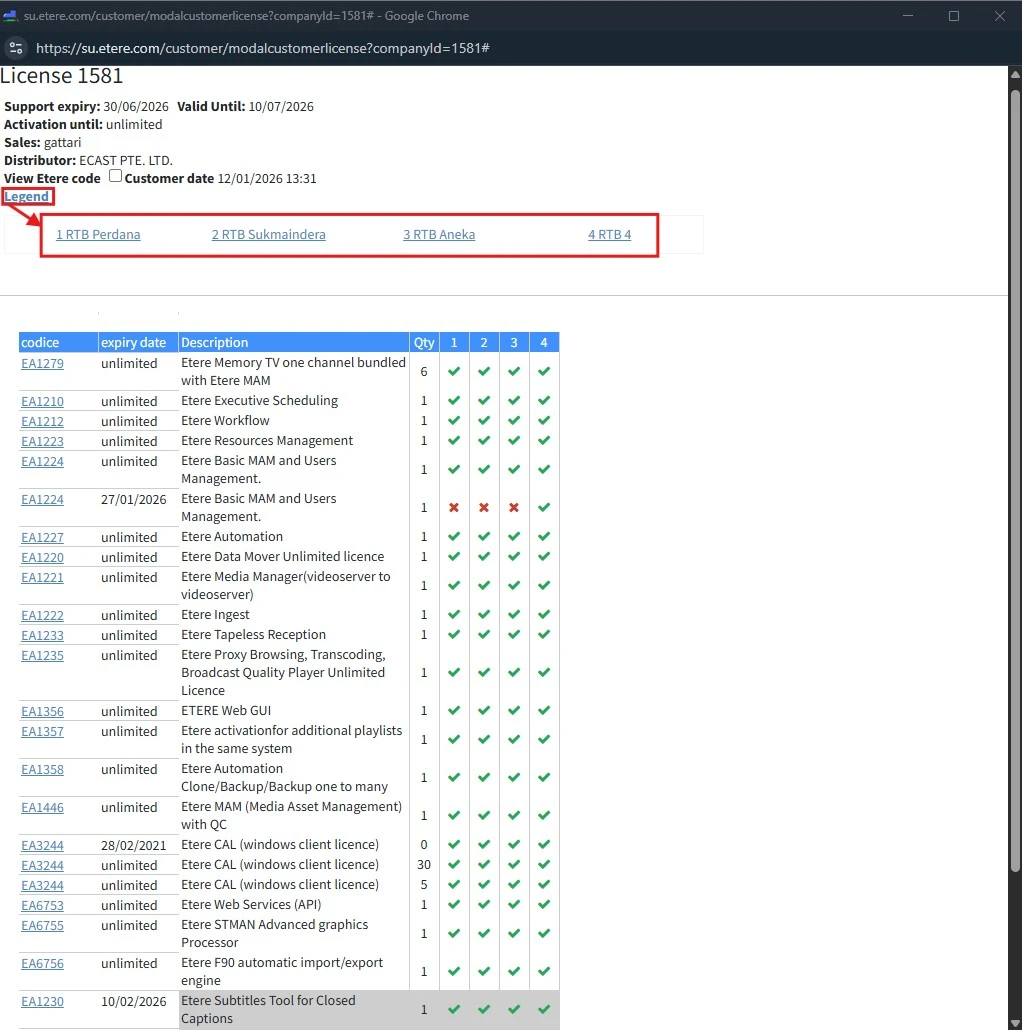
As mentioned before, from support can be displayed the customer license in a form like this:
license_view
In the top part of the page, the following information are available:
• Support expiry: Here is displayed the expiry date of the customer's support contract.
• Valid until: This is the date after which the support service will not be provided anymore and the support status of the customer status will turn red. It's usually set around 1 month after the support expiry date, meaning that the customer can renew the support contract within 1 month after the expiration, before its actual deactivation.
• Activation until: Indicates if the whole Etere license of the customer is subject to expiration (in that case it shows the expiration date) or it's unlimited.
• Distributor: Name of the company which work as distributor for the customer.
• View Etere code: Enabling this flag allows to see the module codes as "ETxxxx". If disabled, the codes are displayed as "EAxxxx".
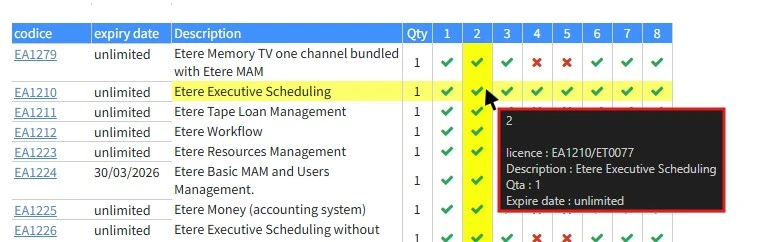
• Legend: If clicked, it allows to show the list of the licensed stations. Clicking on a station, the related column is highlighted in the table below.
In the table you can see all the licensed modules and for each one the following information are specified:
- Code
- Expiry date
- Description
- Quantity
- Stations enabled (✓) or disabled (x)
This page shows additional information in a tooltip when the mouse pointer is hovering over specific areas:
- Over a station number in the column header: It shows the station number and name.
license_hover_column
- Over a cell: It shows the station number and the code, description, quantity and expiration of the module.
license_hover_cell
- Over a tick (✓) or cross (x) inside a cell: It shows the station number with suffix OK if enabled or KO if it's disabled.
Also, clicking on a code the whole row is highlighted, making simpler to check if it's enabled or not in case of many licensed stations.
At the bottom of the table, the grey modules are the ones related to devices.