RAI ICT support protocol
147.9.3 REMOTE ASSISTANCE on RAI ICT system and Remedy Incident Management
In order to provide RAI ICT with support you have to connect to RAI ICT systems using Omnissa (or VmWare) Horizon Client and Vasco DigiPass for authentication (for further notice please refer to the guide into 16838 customer code) then into the personal Virtual Machine you will have a folder named “VNC MAM” where you have the links to all Encoding Servers, for other PCs like Datamovers and API you have to use “mRemoteNG” (for 1st time use you should import the file MREMOTE_RAI_ICT_20230701 from the customer doma for 16838)
Connection_Tools_RAI
The tool needed to answer RAI ICT calls is REMEDY that you can access once connected to your personal virtual machine into RAI ICT environment simply by opening the browser and navigate to this link:
Once opened the page you will be on the main console for incidents:
Remedy_landing_page
There you will have the list of incidents open for our group AM_MAM_ETERE where you can simply doubleclick on one line to enter its management:
Remedy_ticket
The 1st step here is to check the “Impatto” and “Urgenza” field in order to match with the SLA table from previous chapter, then you have to assign the task of managing the issue to a specific person (1st level depending on the 2nd level support available in Italy office) or to self-assign the incident (2nd level only), to do so there is the menu “Assegnatario+” with a drop-down box with the names.
Remedy_assign
Once selected the correct option you can save and for (2nd level only) proceed to the next step which is changing the status of the incident to “in Corso” then save
Note: 1st level should call by phone the available 2nd level operator after this step.
Remedy_in_corso
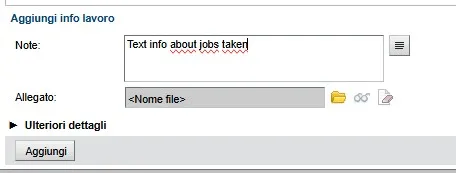
This phase is when you actually investigate the issue and do all your checks for the ticket at hands and you can also add some notes writing in the “Aggiungi info lavoro” text box and saving them using “Aggiungi” button.
NOTE: If possible add the logs that explain the error and screenshot of the error if possible to grab some. In order to upload a screenshot inside the "Info lavoro"
Remedy_info_lavoro
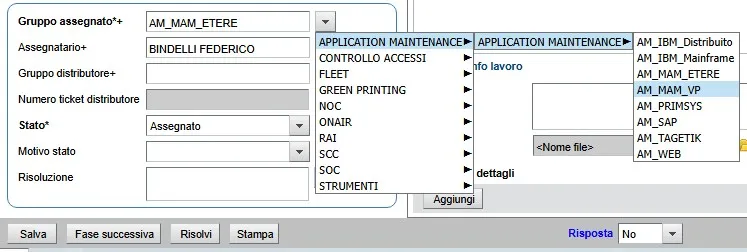
Next step is to mark the incident as solved (in case you manage to solve the issue) or assign to another Group (in case the incident should be forwarded to VP), to do so you have the option to change again the “Stato” to either “Risolto” or “Assegnato”.
-> Risolto: need to be further discussed by selecting the “Motivo Stato” and writing a small summary on “Risoluzione” textbox
-> Assegnato: in case you want to forward to VP for their analysis you have to change the “Gruppo assegnato” field by selecting “APPLICATION MAINTENANCE” -> “APPLICATION MAINTENANCE” -> AM_MAM_VP
Remedy_send_to_VP
After correctly managing the case inside remedy you can go back to Etere Support Webpage and update the related incident.
NOTE: Remember that the incident should be forwarded to SOC only in case you need permission to restart the server, for every other query or request forward the incident to AM_MAM_VP.
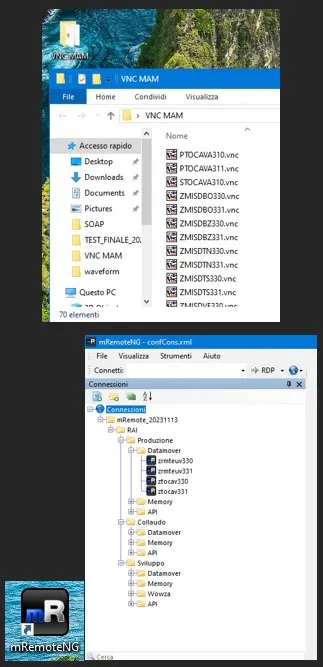
Connection_Tools_RAI

Remedy_landing_page
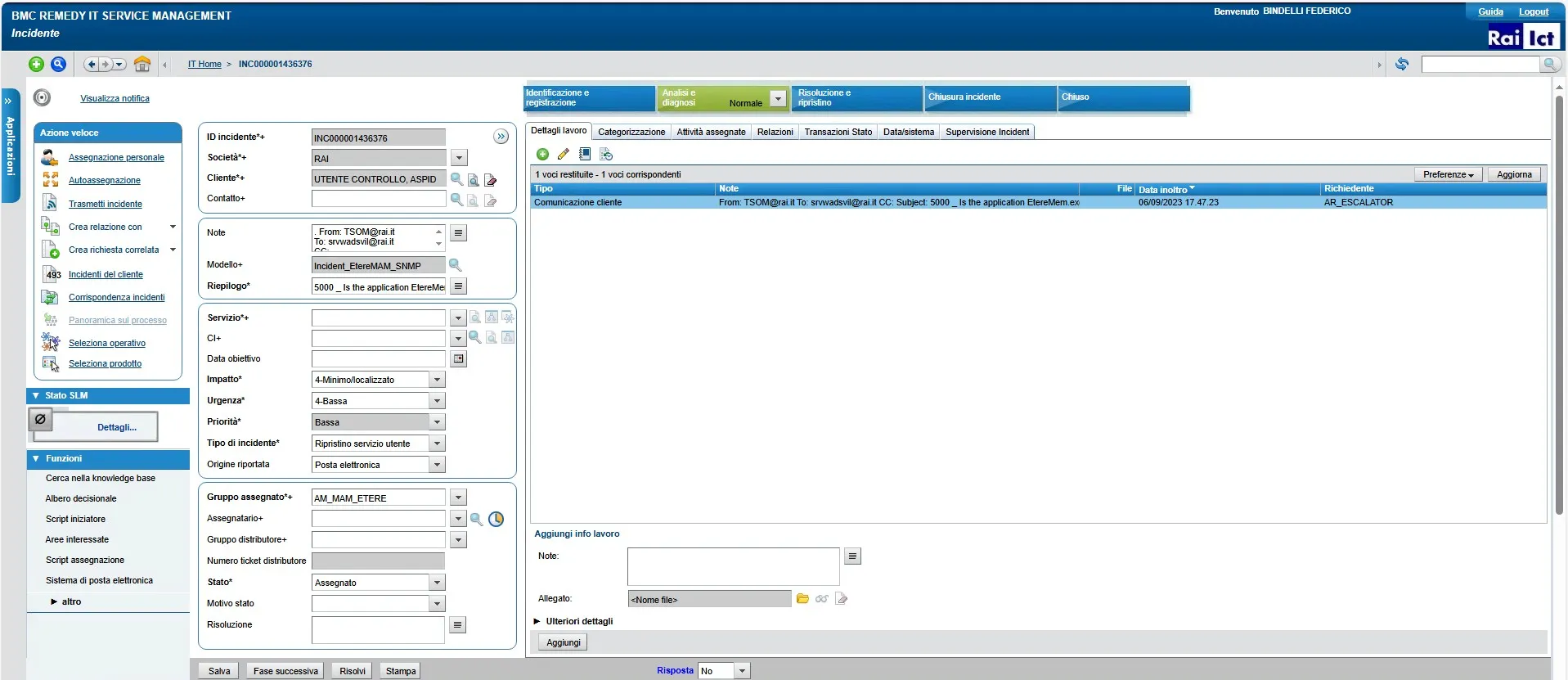
Remedy_ticket
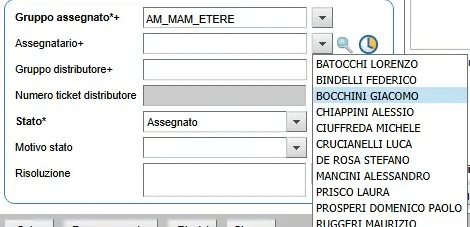
Remedy_assign
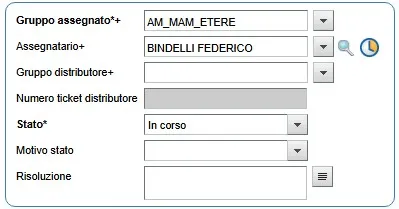
Remedy_in_corso
Remedy_info_lavoro
Remedy_send_to_VP